Organisers
Getting started as an organiser
The order most organisers work in, from first sign-in to the day after the event, with a link for each step.
This is the usual path for an organiser. Each step links to the guide with the detail. You do not have to follow the order strictly, but entries cannot open until the event is set up.
Before you start
- Create your account and sign in. See Create an account and sign in.
- Starting a new club or series? Sign it up yourself and set up events as drafts while the Stagewerk team approves it. See Sign up your club. Joining an organiser that already exists? Ask an owner to invite you from Team in the sidebar, then open the link in the email. Owners invite people and manage roles there. See Members and roles.
- If you can switch between several organisers, use the switcher at the top of the sidebar.
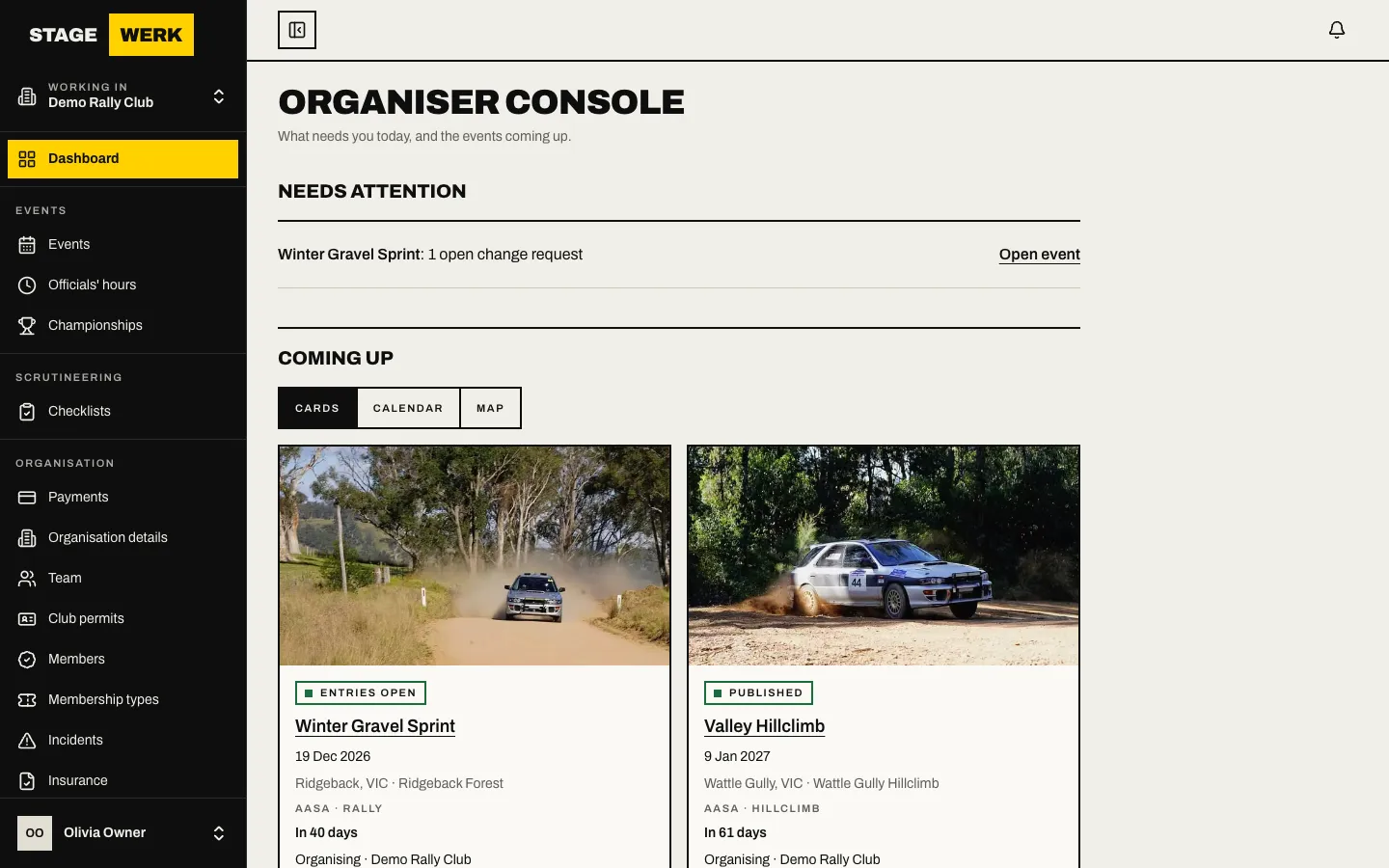
Set up the event
- Create the event, its classes and its fees. See Set up an event and Fees and the withdrawal policy.
- Choose the event format, and add the itinerary and start settings. See Event formats and Itinerary and start settings.
- List the documents and declarations entrants must provide. See Required documents and declarations.
- Generate the supplementary regulations and record the sanctioning body's answer. See Issue the supplementary regulations.
- Ask your sanctioning body to sanction the event and read its answer. See Ask a sanctioning body to sanction your event.
- Choose how classes fill and what happens when they are full. See Classes, capacity and the waitlist.
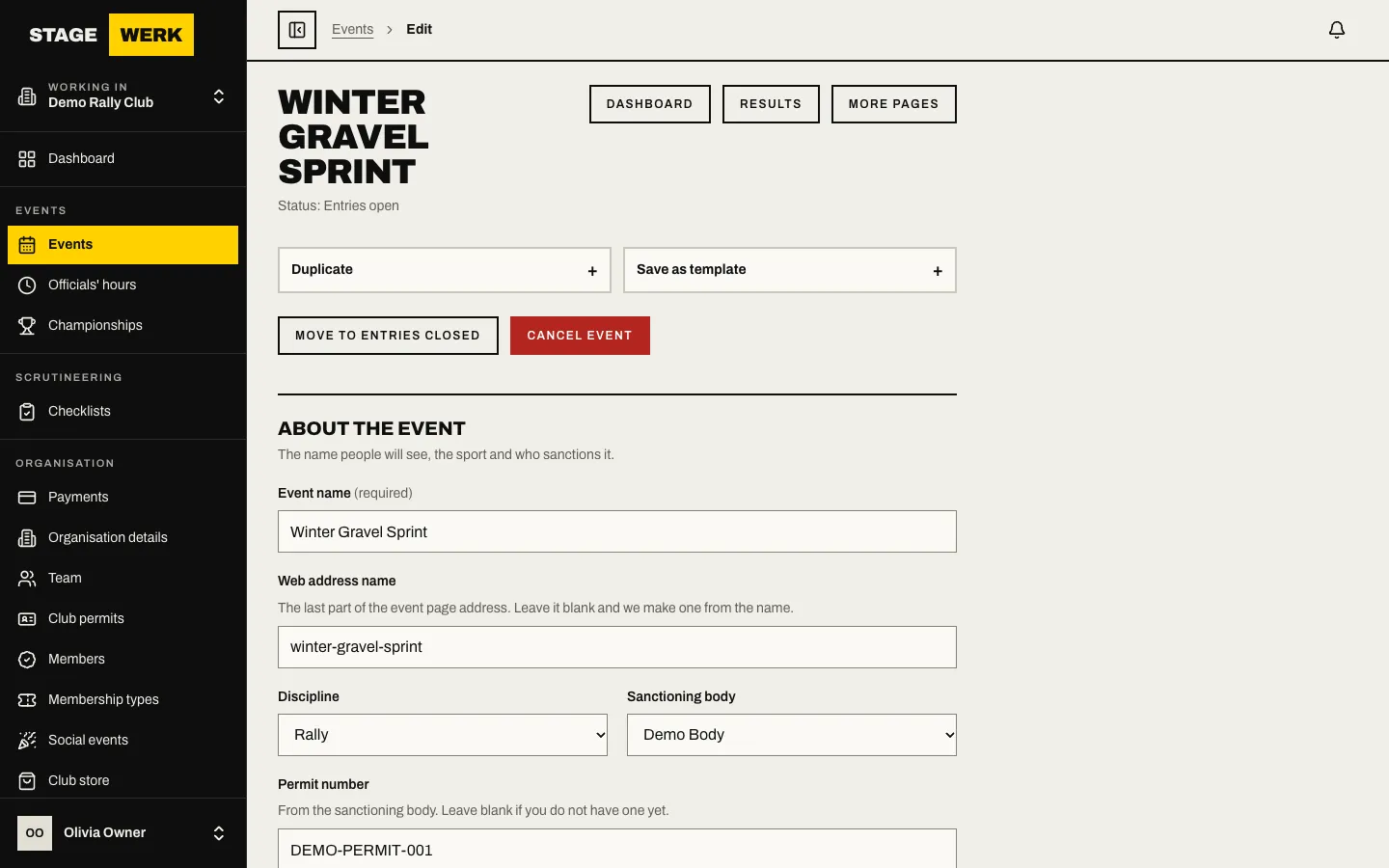
Open entries and work the list
- Open entries when you are ready, and close them later. A new organisation can publish and open entries only once the Stagewerk team has approved it. See Open and close entries.
- Work the entry list: accept, move, number and seed entries. See Work the entry list.
- Tell entrants about changes with a bulletin. See Send a bulletin. To email news to a whole event or organisation, use the Mailouts add-on. See Send a mailout and Add-ons. For urgent news on the day, the SMS add-on texts the people who agreed to it: see Send a text message.
- Put the event on your own website with the widgets and calendar. See Embed widgets and the calendar.
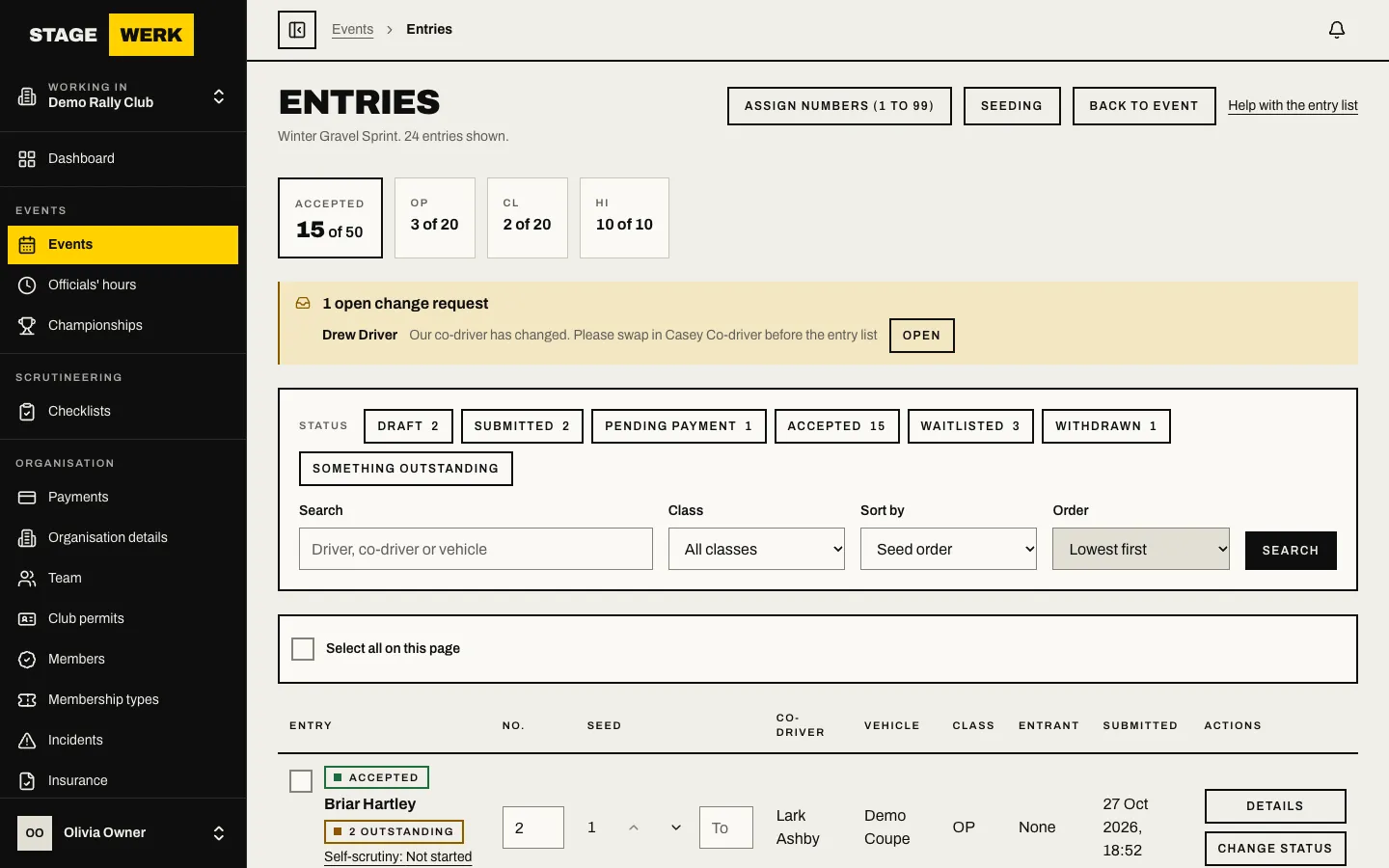
Get ready for the day
- Produce the start order and the print pack. See Produce the start order and the print pack.
- Run documentation day. See Documentation day runbook.
- Build the officials roster from the event's "Roster" page, and sign up helpers. See Manage volunteer sign-ups. Officials then reply from their own account. See Getting started as an official.
- Choose a self-scrutiny checklist and plan inspections from the event's "Scrutineering" page. See Getting started as a scrutineer.
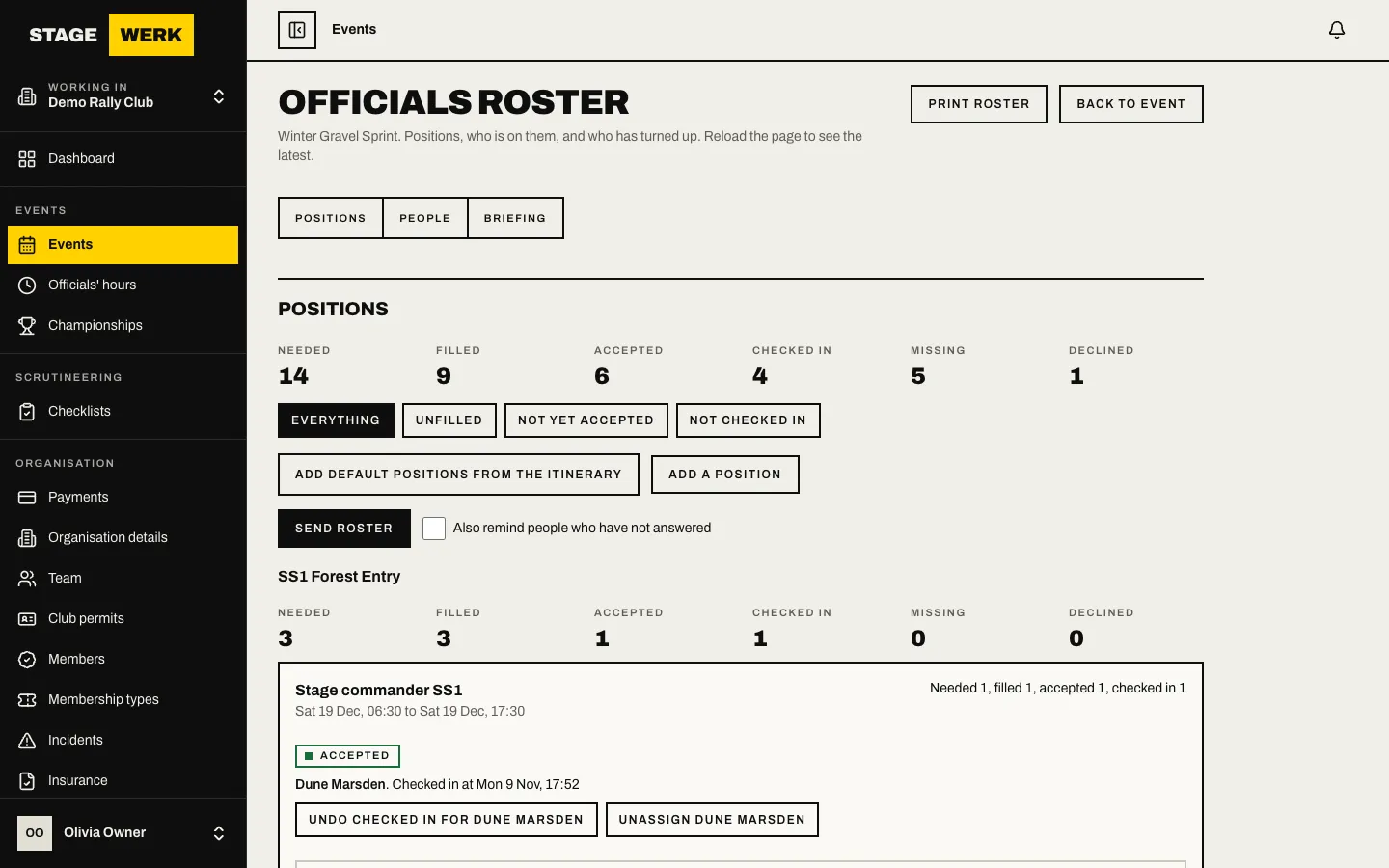
On the day and after
- Follow the Event day runbook.
- Afterwards, see After the event.
Other parts of the organiser console
These have screens in the sidebar but no step-by-step guide yet.
- Series and seasons. If your organiser is a series, "Seasons" lets you open registration and set permanent numbers. See Series and seasons. Each season also has a points scheme and standings pages in the console, and can show standings publicly.
- Club permits. "Club permits" is your own register of club and concessional permits. You record eligibility checks and logbook endorsements yourself: Stagewerk does not decide eligibility.
- Members. If you run a club, "Members" lists your members and exports them. See Find and export your members.
- Register and AGM. "Meetings" and "Committee" run your general meetings and record your office holders, and owners can download the register of members from "Members". See Run your AGM and Keep your member register.
- Results, protests and incidents. Each event has pages for them, linked from its dashboard.
For developers
If your own systems need to read your public event data, owners can create keys under "API keys" and read the API reference.
More guides for organisers
- Events: Clone an event or save a template, Event dashboard and readiness, Seeding and start order, Entry messages and transfers.
- Messages: Which message to send.
- Money: Take card payments, Track money and refunds, Getting started as a treasurer.
- Officials and scrutiny: Build the officials roster, Scrutiny setup and triage, Record an incident.
- Results: Enter times and import results, Publish results and the final classification, Run protests and decisions, Points, standings and trophies.
- Club and organisation: Sponsors, equipment, insurance and permits, Media accreditation and public forms, Build your club website, Custom domain, API keys, webhooks and embeds, Export or close your organisation.