Organisers
Media accreditation and public sign-up forms
Photographers and volunteers can apply from your public event page without an account. See the applications and decide on them.
Your public event page has two forms anyone can fill in without an account: one for volunteers and one for photographers and video crew. You do not turn them on. They appear on the event's public page while the event is published and not yet complete, and disappear once it is complete.
What people see
Near the bottom of the public event page they see two lines:
- "Want to help on the day?" with the link "Volunteer for this event".
- "Photographer or video crew?" with the link "Apply for media accreditation".
You can send these links yourself. They are the event's public page address with /volunteer or /media added.
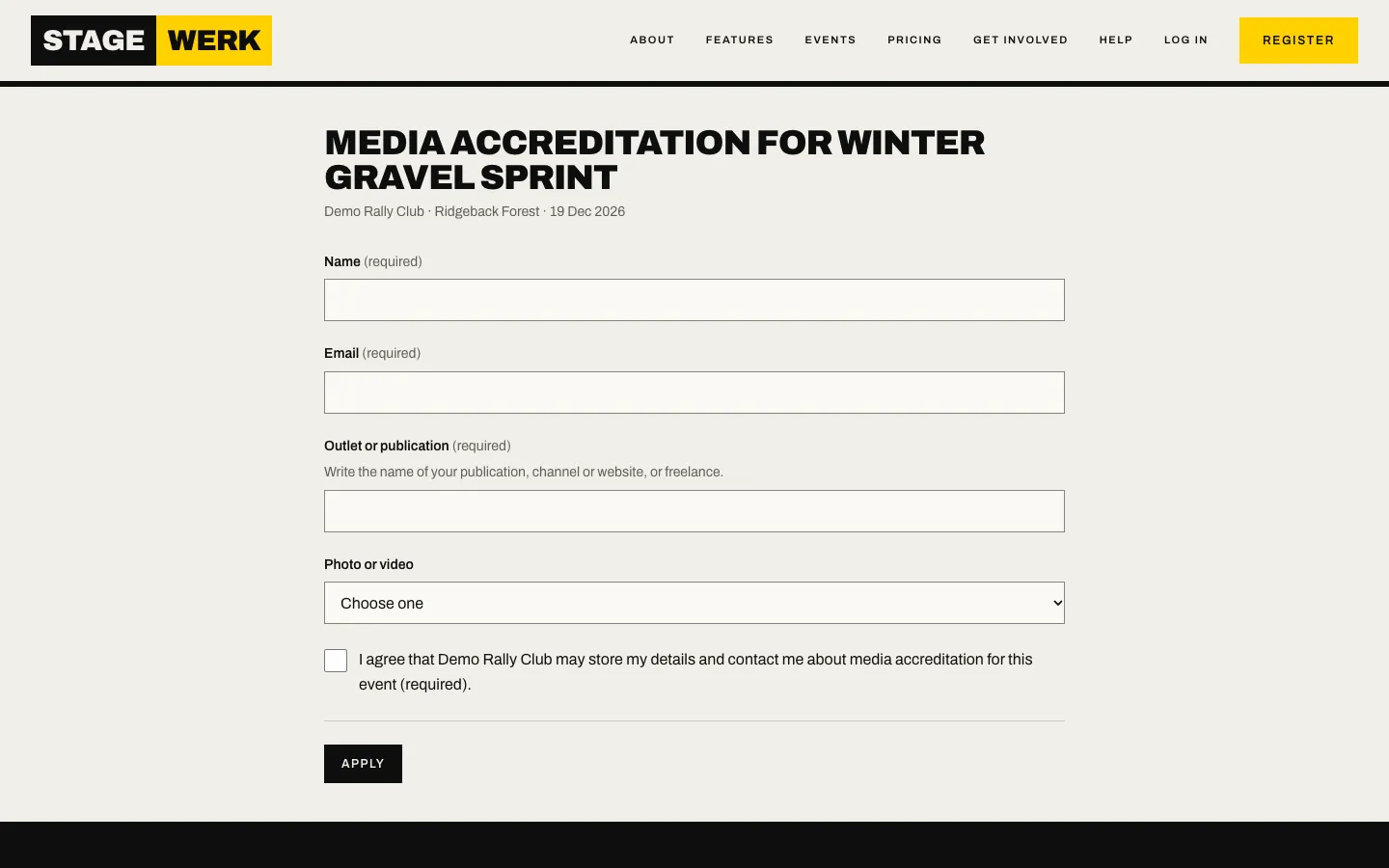
The media form asks for "Name", "Email", "Phone", "Outlet or publication" (a publication, channel or website, or freelance), "Photo or video", and agreement that your organisation may store their details and contact them about accreditation. They choose "Apply". It has a hidden field to catch automatic spam, and the volunteer form is limited in how often it can be submitted.
See media applications
- On the events page, choose "Media" for the event.
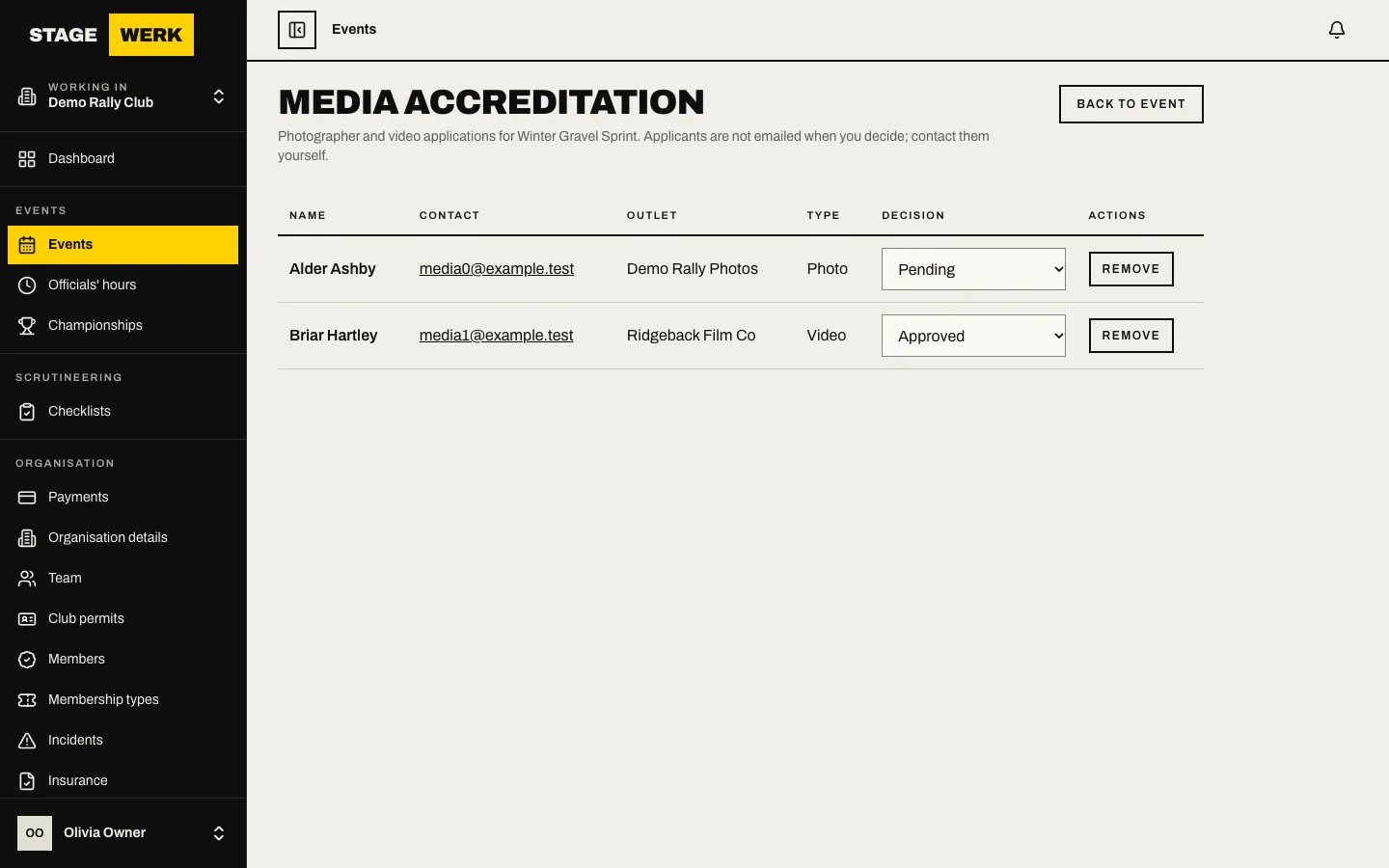
- The "Media accreditation" page lists each application with "Name", "Contact" (their email), "Outlet", "Type" (photo or video) and "Decision".
Decide
- Use the "Decision" menu on the row: Pending, Approved or Declined. It saves straight away.
- Contact the applicant yourself. Applicants are not emailed when you decide.
- Use the remove button on the row to delete an application, for example if the person asks for their details to be removed.
Approving here is your own record of who you accepted. It does not give anyone a pass; you issue your own credentials or passes.
See volunteer sign-ups
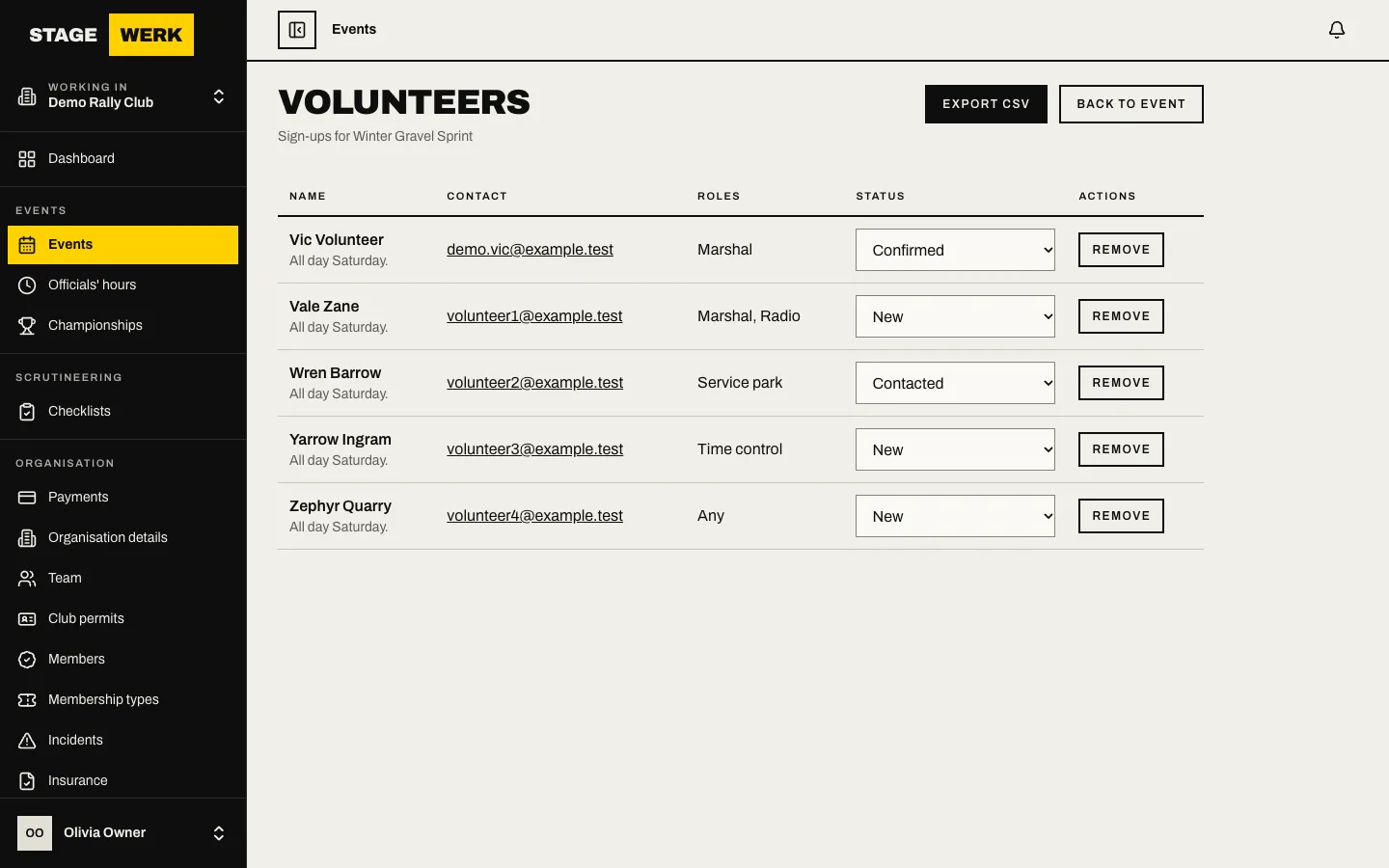
On the events page choose "Volunteers" for the event. Track who you have contacted and export the list. See Manage volunteer sign-ups. The volunteer's own side is in Sign up to help at an event.
Tell people before the day
- Email volunteers with a bulletin and tick the volunteer roles. See Send a bulletin.
- Applicants for media are not reached by a bulletin. Contact them by the email address shown.
If something goes wrong
- The form links are not on the public page. The event is a draft or complete, or it is not public. Publish the event, or check it is not marked complete.
- An applicant did not get a confirmation. The media form does not send one. The volunteer form sends a confirmation email.
- You cannot find "Media". It is a link on each event row of the events page, under the event name.