Organisers
Series and seasons
For series organisers: create a season, open registration, and manage permanent numbers and registrations.
This guide is for organisers that run a series, such as a championship. If your organisation is not a series, you will not see "Seasons" in the sidebar.
Create a season
- Choose "Seasons" in the sidebar, then "New season".
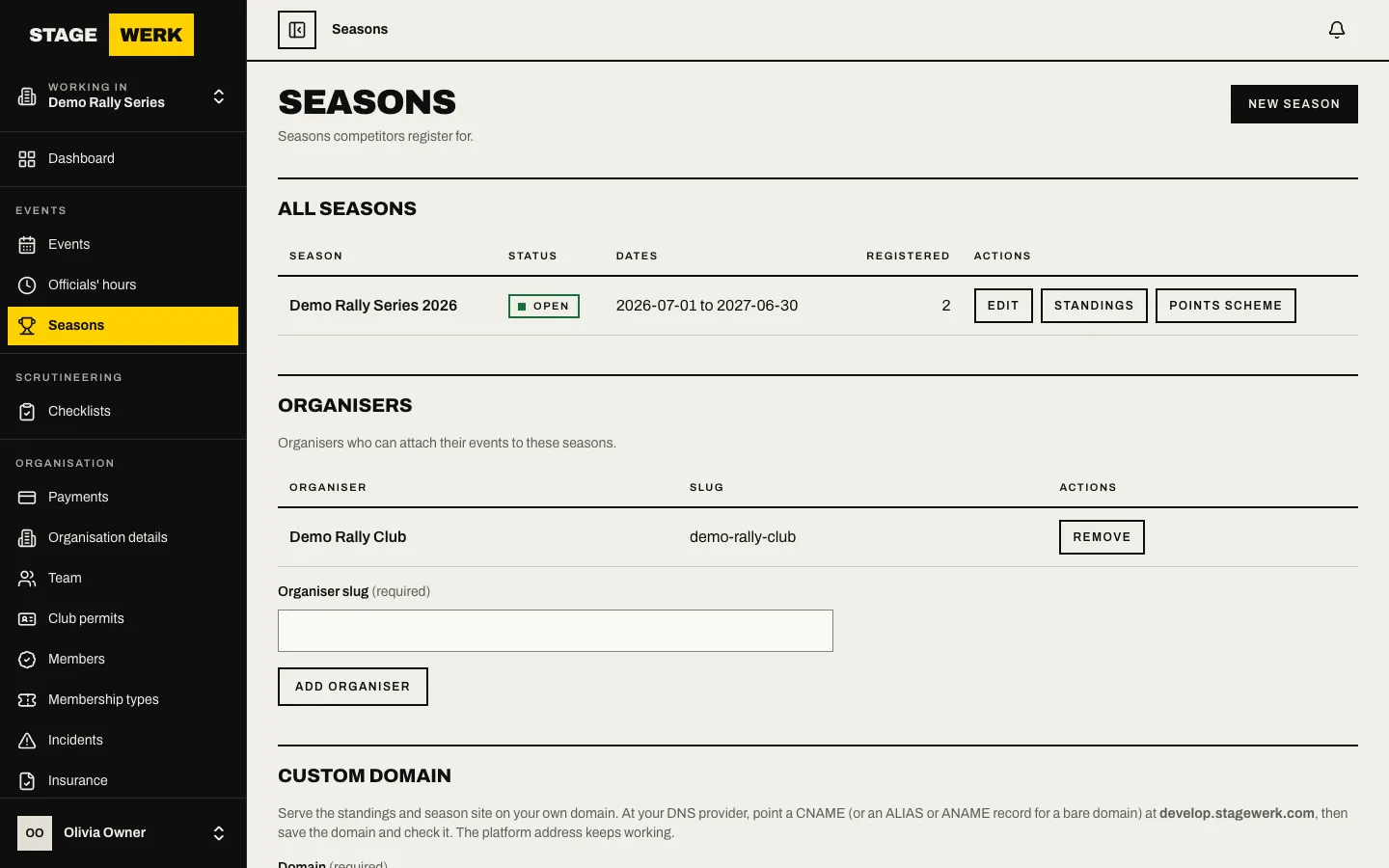
- Enter a "Season name", "Starts on" and "Ends on".
- Set when registration runs with "Registration opens" and "Registration closes".
- Set the range of permanent numbers: "Lowest permanent number" and "Highest permanent number".
- Tick "Fee includes GST" if the registration fee already includes it.
- Save the season.
Open and close registration
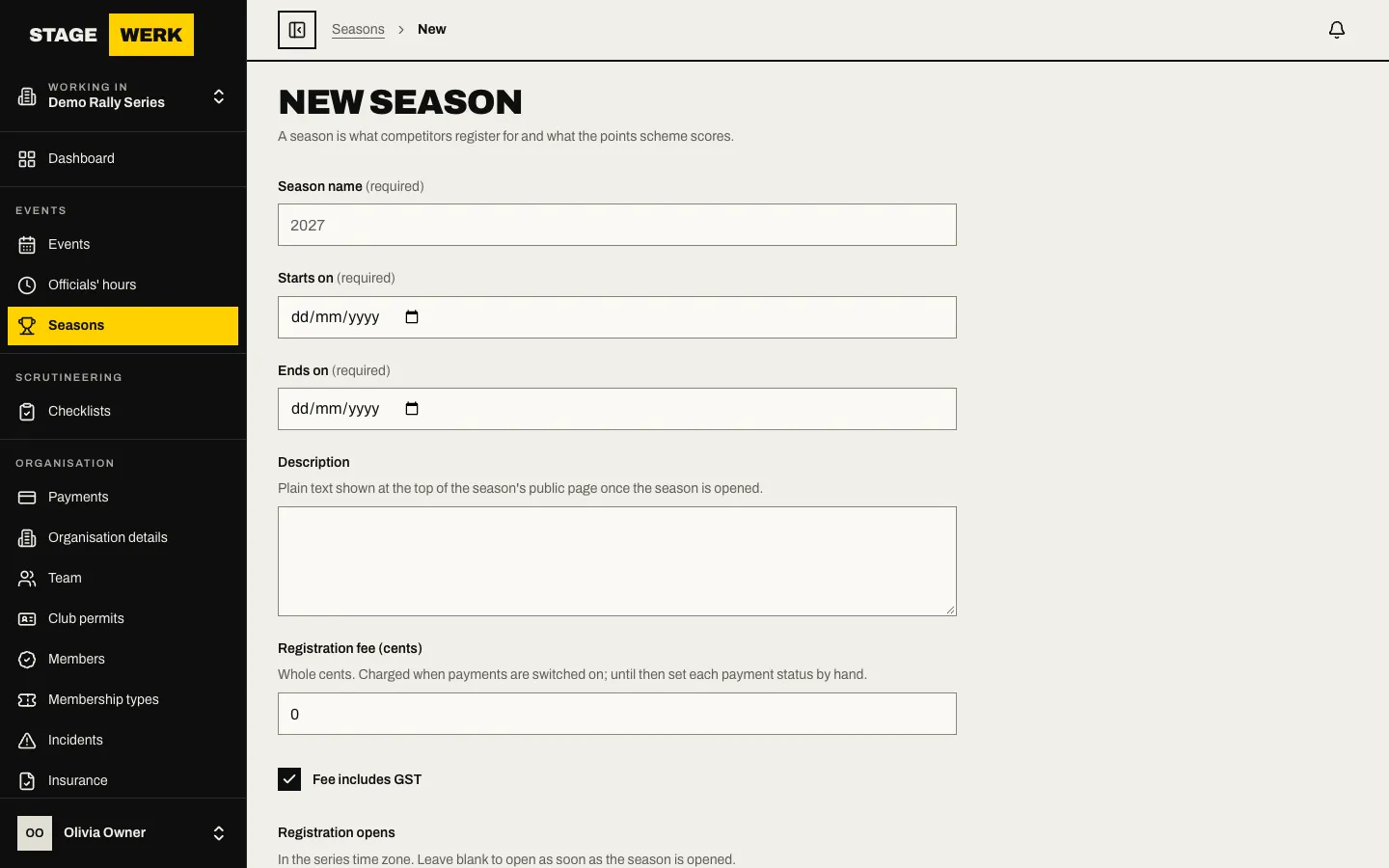
Open the season with "Edit". Choose "Open registration" so competitors can register. Choose "Close registration" to stop new registrations (it asks you to confirm). A closed season can be reopened with "Reopen registration".
Set a levy on each entry
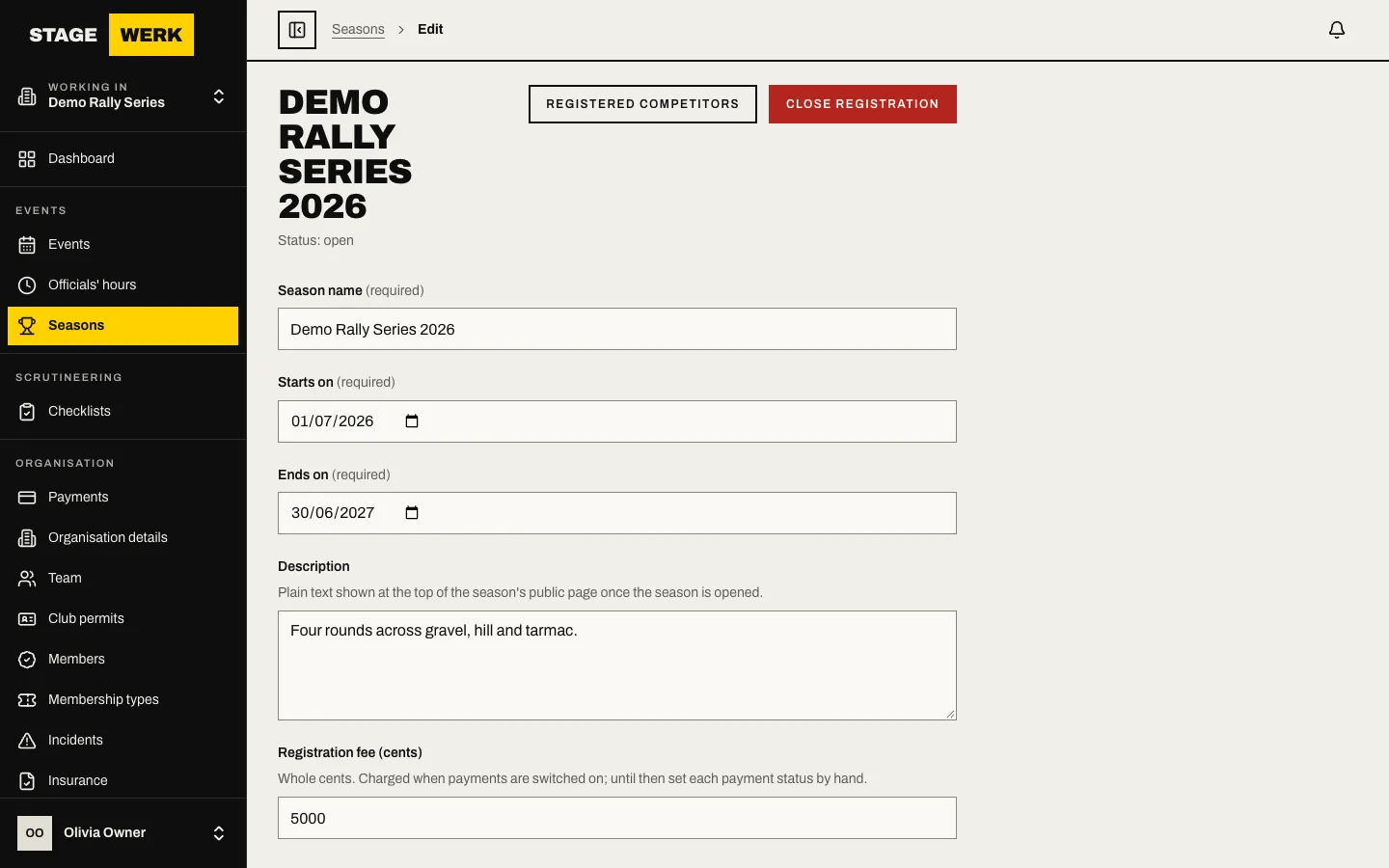
A series can take a levy on every entry to a round of a season. On the season's edit page, find "Levy on each entry" and choose "A fixed amount per entry" (whole cents) or "A percentage of the entry total" (up to 25 percent, worked out on the total the entrant is quoted and rounded down to the cent).
- Tick "Add the levy on top of what the entrant pays" if the entrant should see it as its own line, "Series levy", before they pay. Leave it off and the levy comes out of the organiser's share of the entry fee, so the entrant's price does not change.
- Tick "Levy includes GST" if your series is registered for GST. The GST inside each levy is recorded in the finance figures.
One card payment pays both: the organiser's Stripe account receives the entry fee and your series' Stripe account receives the levy. Connect your series' Stripe account on the "Payments" page. Until it can receive transfers, the platform holds the levy and sends it as soon as the account is ready; nothing is lost and entrants and organisers are not held up.
When an entry is refunded, the matching share of the levy is taken back from your series in proportion to the refund. Choose "Levy" on the season to see what was collected on each round, what has been sent to you, what was taken back and what is still held. "Download CSV" gives the same figures. No tax invoice is issued for the levy yet; ask your accountant how it should be documented.
Organisers see the levy in the "Series" section of an event's edit page when they pick your season.
Which organisers can join
Under "Organisers" on the seasons page, enter another organiser's slug in "Organiser slug" and choose "Add organiser". That organiser can then attach their events to your seasons. Use "Remove" to take one off.
Attach an event to a season
On an event's edit page, find "Series". Pick the "Season", set the "Round number" and choose "Save series". The Series section only appears if your organiser belongs to a series.
Work the registrations
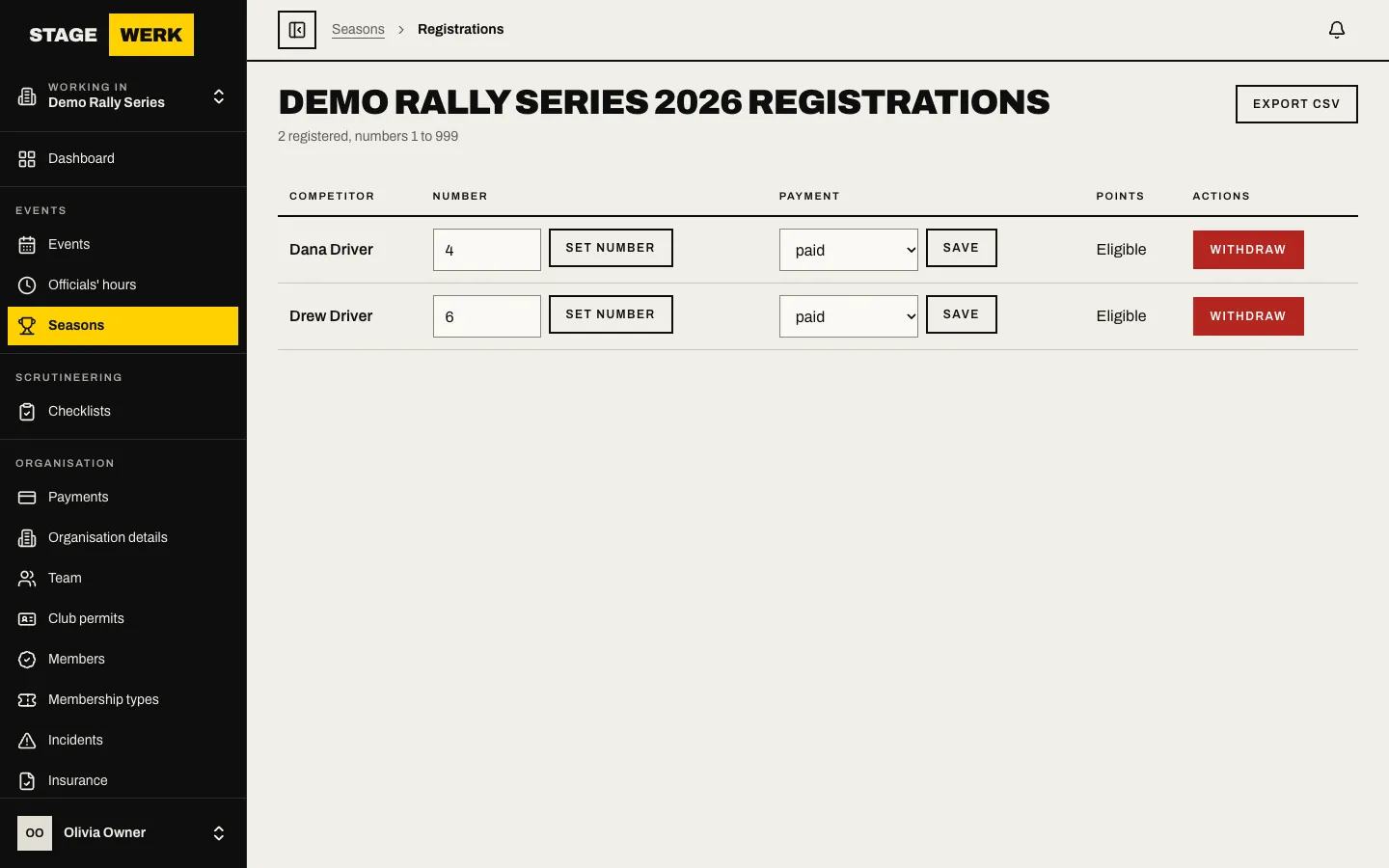
Choose "Registered competitors" on the season. You can:
- Set a competitor's "Permanent number" and choose "Set number". A registered driver is given their permanent number first when you assign event numbers.
- Change the "Payment status" and choose "Save".
- Choose "Withdraw" to remove a registration.
- Choose "Export CSV" for your records.
What competitors see
Competitors open "Series" in their sidebar to register for an open season and ask for a number. They can withdraw their registration while the season is open. Registered competitors may get registered pricing on events, where you set it. See Fees and the withdrawal policy.
Points, standings and trophies
Points schemes, standings and trophies are covered in Points, standings and trophies.
If something goes wrong
- A competitor cannot register. The season is not open, or the number they asked for is outside your range or taken.
- You cannot change payment status. Your role does not manage finance. See Members and roles.