Drivers and entrants
Paying for your entry
Pay online after you submit, share the cost with a link, and where to find your tax invoice.
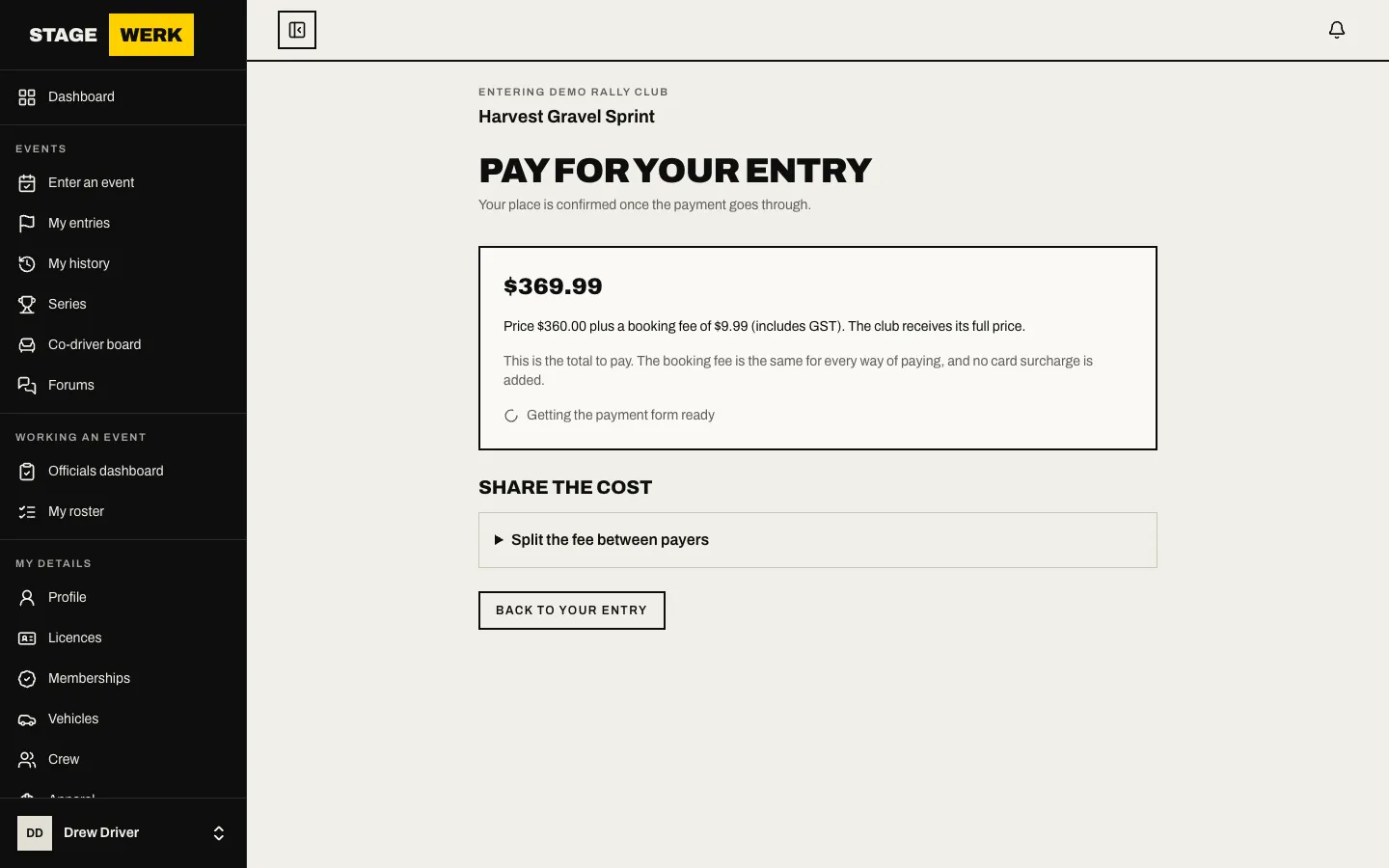
You pay for your entry online, on Stagewerk, once you have submitted it. Your place is confirmed when the payment goes through.
What you pay
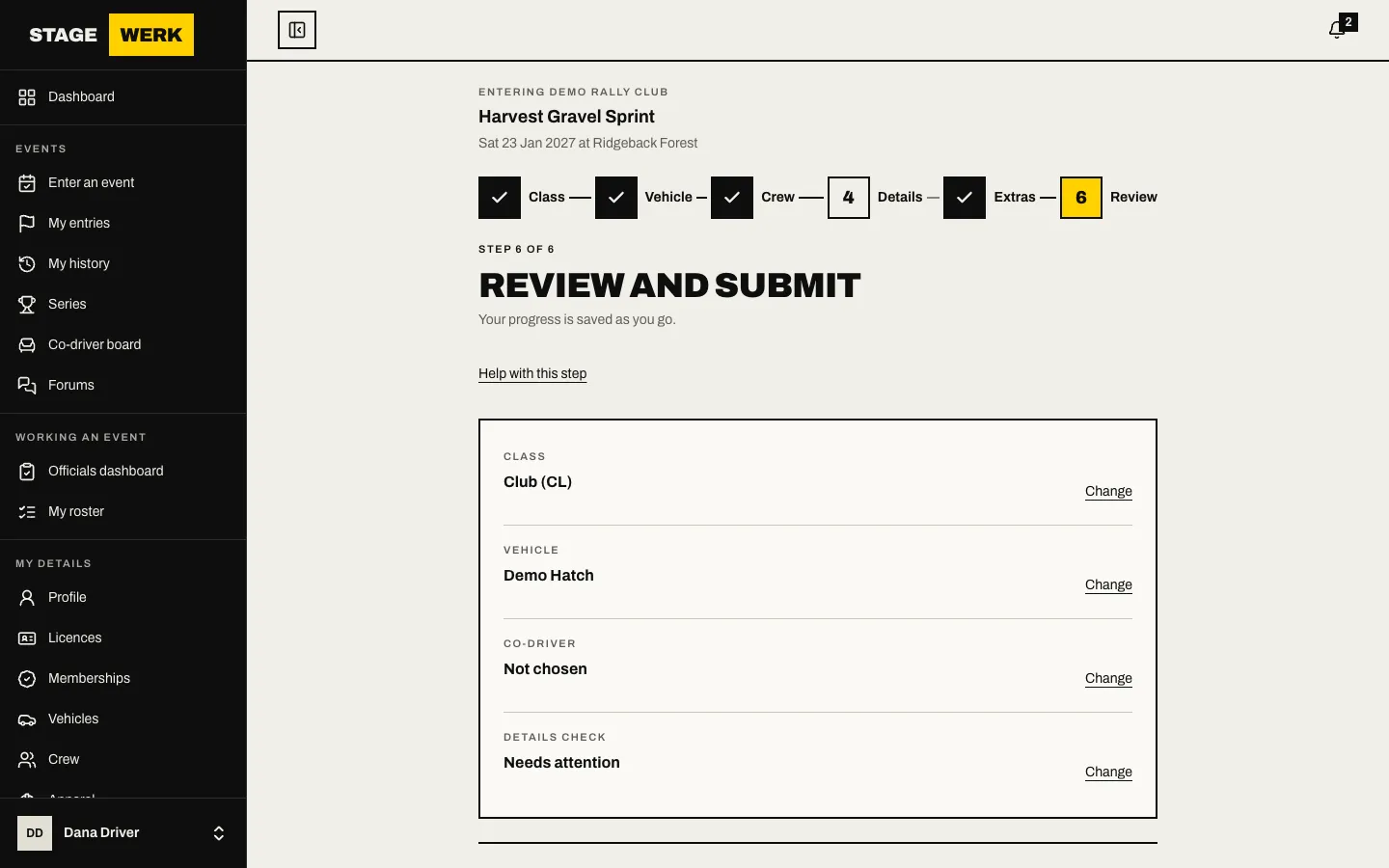
- The price is set when you submit. On the Extras and Review steps you see "Your quote" with each fee, the GST and the total. When you choose "Submit entry" the quote becomes "What you agreed to". Later changes to the organiser's fees do not change it. See Enter an event.
- No card surcharge is added. The page says so beside the price.
Pay
- Choose "Pay now" on the Review step or on your entry page under "My entries". This opens "Pay for your entry".
- Check "What you agreed to".
- Pick a payment method in the payment form and pay. You can pay by card, Apple Pay or Google Pay. Bank payments (Australian direct debit and PayTo) are available on request: ask the organiser if you would rather pay that way. The form shows only the methods on offer for your entry.
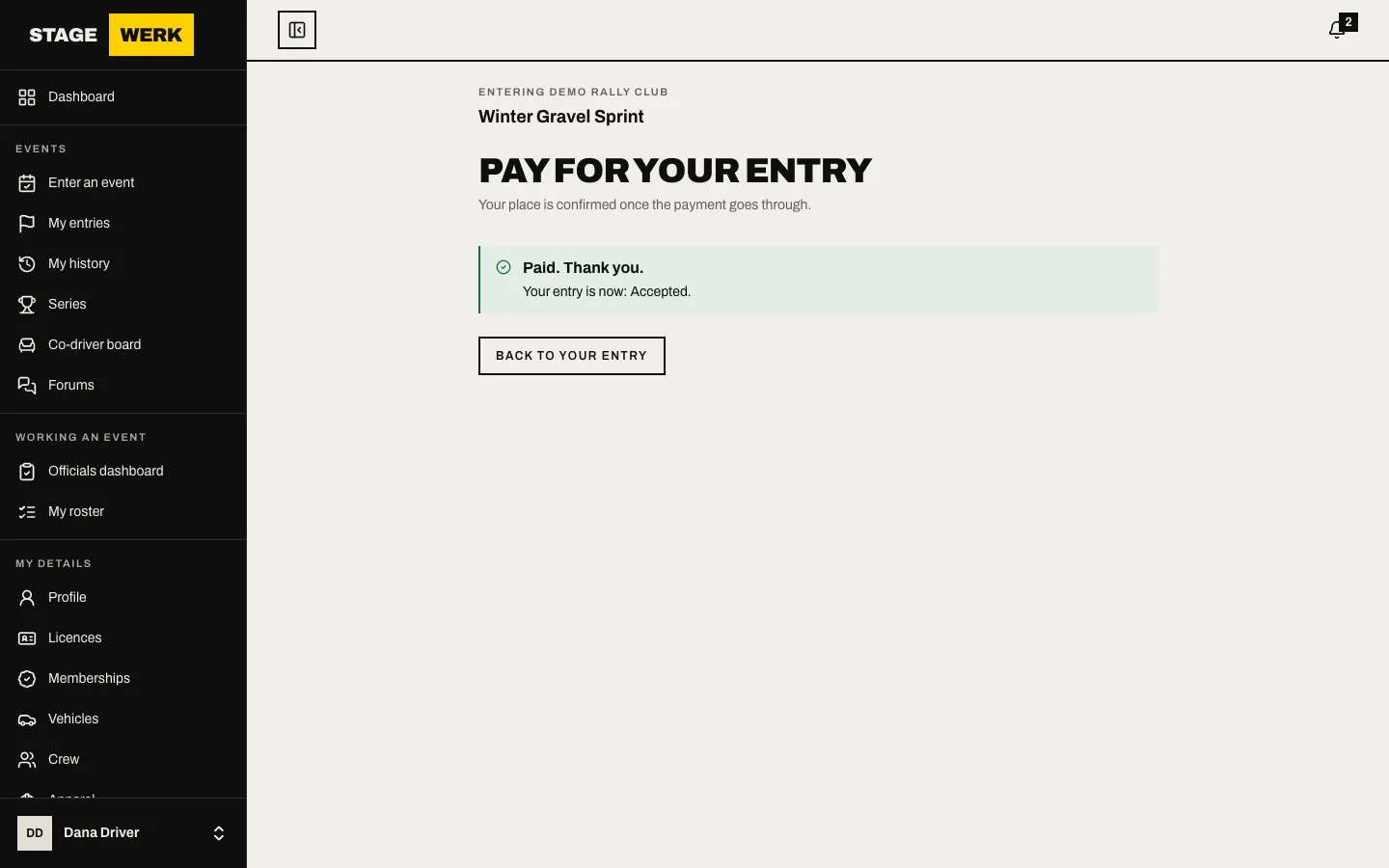
- The page says "Confirming your payment" for a few seconds. Do not pay again. When it is confirmed you see "Paid. Thank you." and your entry's new status.
If your payment is declined, the page says it did not go through, and you can try again with the same or another method. Your entry stays as it is, waiting for payment.
Bank debit takes longer
If your organiser has agreed to take a bank payment, a direct debit or PayTo payment is accepted first and confirmed by your bank later. While it is processing:
- The page says your bank debit is being processed. You do not need to pay again.
- Your place is held. Your entry updates by itself when the bank confirms.
- If the debit fails or is cancelled, the place is no longer held and may be offered to the next driver on the waitlist. Pay again by another method if the event still has room.
A place held for you
If you were offered a place from the waitlist, the page says "A place is held for you" and shows the time you must pay by. After that the place goes to the next driver.
Share the cost
A co-driver, team or sponsor can each pay a share.
- On "Pay for your entry", find "Share the cost" and choose "Split the fee between payers".
- Enter each payer and their share. The shares must add up to the whole fee exactly.
- Choose "Send pay links". Each payer gets their own link by email. It works without signing in, and they pay only their share.
- Under "Who pays what" you can copy a link, choose "Send reminder", or choose "Remove last payer" or "Remove the split" while editing. Once any share is paid the split can no longer be removed.
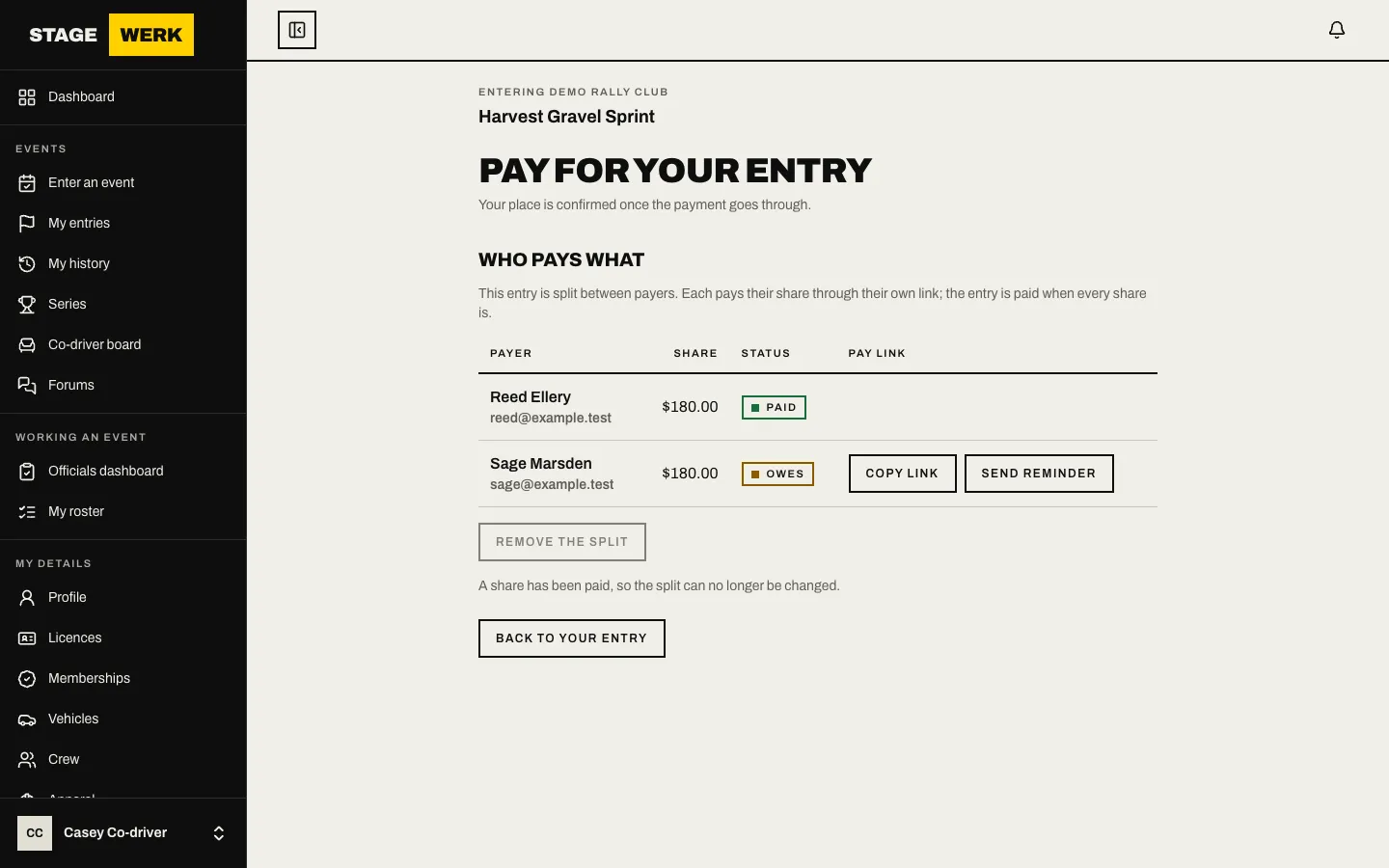
The entry is confirmed when every share is paid. While a share is part paid, its place is kept for the payers still to pay.
Your tax invoice
Once you have paid, "Your tax invoice" appears at the bottom of the payment page with a link to the invoice. It states that it is paid, so it is also your receipt.
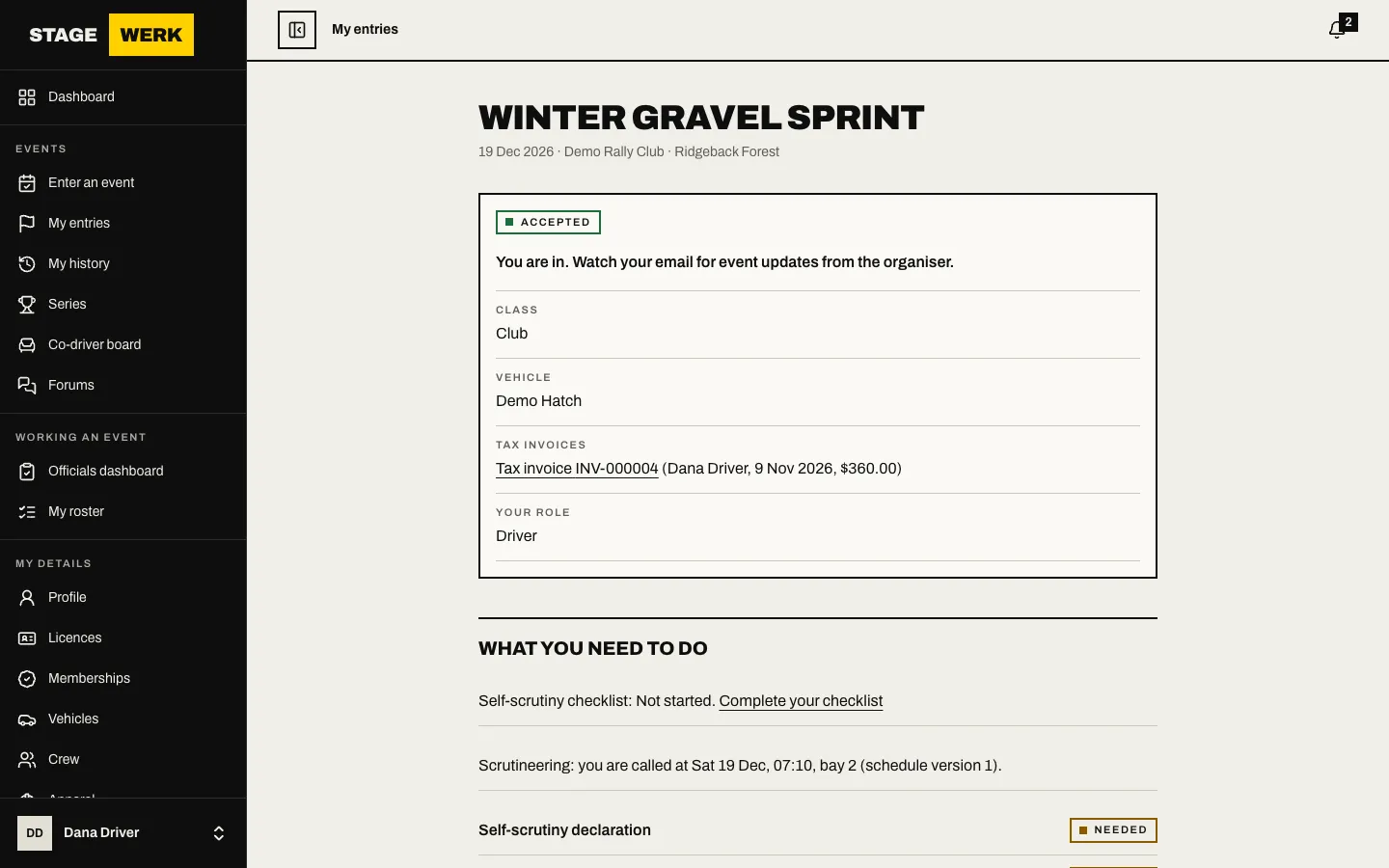
Each payer of a split gets the invoice for their own share on their pay link page.
If you withdraw
Your entry page shows what the event's policy says. See Withdraw your entry and Fees and the withdrawal policy.
If something goes wrong
- The total looks wrong. Check the extras you chose on the Extras step. If the entry is already submitted, ask for a change.
- There is nothing to pay, or payment is not offered. The page says why: the class is full and you will be waitlisted, you are on the waitlist, the event is not taking entries, or the organiser cannot take online payments yet. Nothing is charged in these cases. Contact the organiser using the details on the event page.
- You are not sure it worked. Look at your entry under "My entries" before paying again.