Drivers and entrants
Keep your safety apparel register
Record your helmet, suit and other safety gear, add a photo of each label, and see what a scrutineer decides.
Your apparel register lists the safety gear you wear and when its standard expires. Some events ask for apparel evidence as a required document, and scrutineers can review your label photos. See Complete your profile, licence and vehicle for the rest of your records.
Add an item
- Choose "Apparel" in the sidebar.
- Choose "Add apparel".
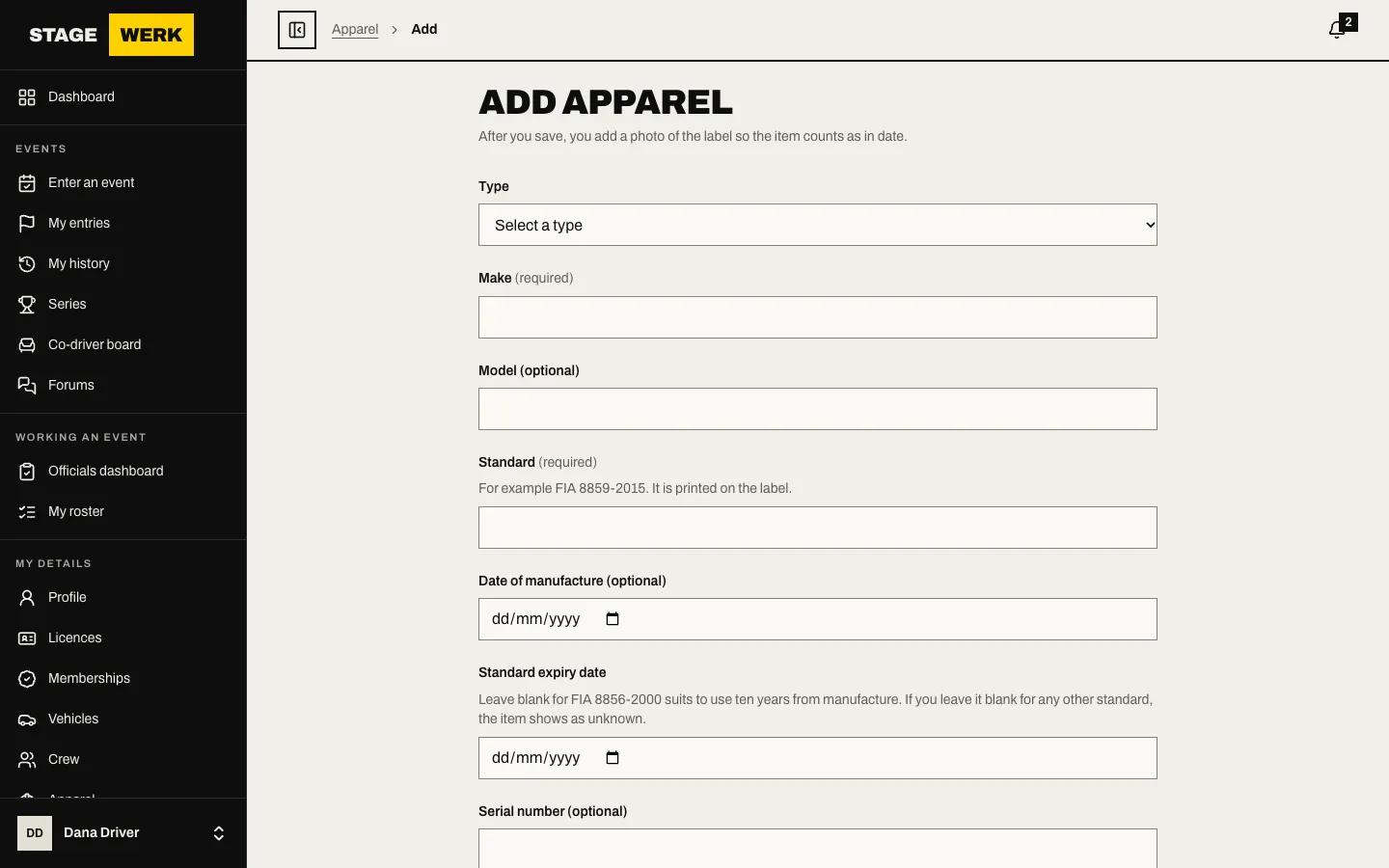
- Pick the "Type": helmet, FHR (head and neck restraint), suit, gloves, boots, underwear or balaclava.
- Enter the "Make", and the "Model (optional)".
- Enter the "Standard" printed on the label, for example FIA 8859-2015.
- Enter the "Date of manufacture (optional)" and the "Standard expiry date". If you leave the expiry blank, an FIA 8856-2000 suit uses ten years from manufacture. For any other standard the item shows as unknown, so enter the date.
- Add a "Serial number (optional)" and "Notes (optional)" if you want them.
- Choose "Save apparel".
Add a photo of the label
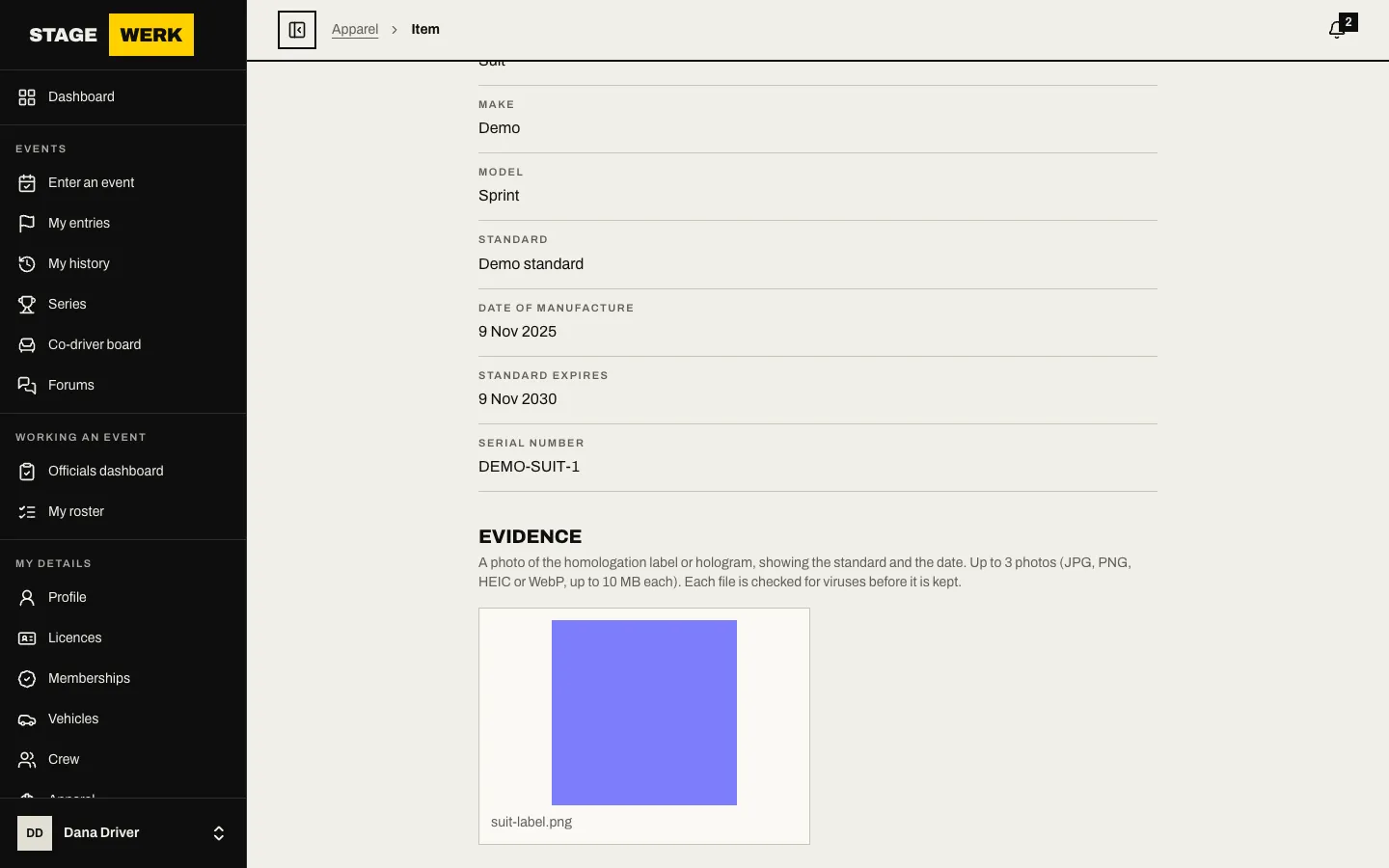
Saving takes you to the item's edit page, where the photo goes. An item does not count as in date until it has a photo.
- Under "Evidence", choose the file under "Photo of the label". Take it with your phone camera or pick a file.
- Photograph the label or hologram so the standard and the date are readable. JPG, PNG, HEIC and WebP files up to 10 MB are accepted, and each item holds a limited number of photos.
- Wait while it shows "Checking the photo". Each file is scanned for viruses before it is kept.
- To replace a photo, choose "Remove photo" and add another. An item with the maximum number of photos asks you to remove one first.
If photo upload is not set up in the environment you are using, the page says so.
What the status means
Your list shows each item under its type with a status: current, expiring, expired or unknown. An item shows "Evidence needed" until a photo has been added and has passed the virus check.
A scrutineer's verdict
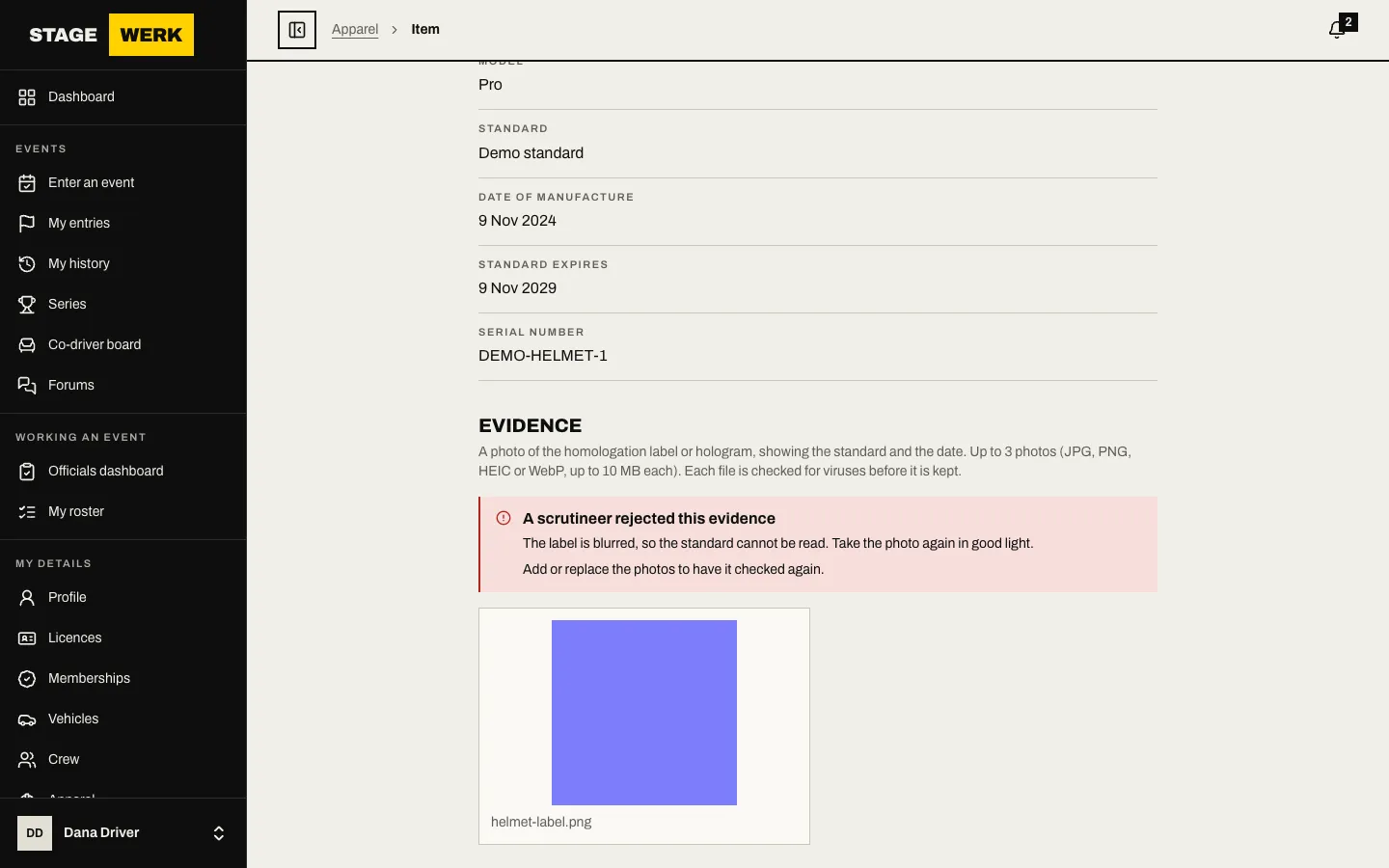
At the event, a scrutineer can open your entry and review the photos. They choose a verdict of checked or rejected and save it. If they reject it, they must give a reason. You see the reason on the item under "A scrutineer rejected this evidence". Replace the photo or fix the details, and it can be reviewed again.
Change or delete an item
- Choose the item from "Apparel" and then "Edit".
- Change the details and choose "Save".
- To remove gear you no longer use, choose "Delete item". This removes the item and its photos.
Deleting unused items matters when an event requires apparel evidence: every item you keep needs an accepted photo. See Required documents and declarations.
For scrutineers
On an entry's inspection page the "Safety apparel" section lists each item and its photos. Choose a "Verdict", enter a "Reason (required to reject)" when rejecting, and choose "Save verdict". The competitor reads the reason. See Inspect cars at an event.