Answer roster offers and check in
An organiser builds a roster for each event and sends positions to the people they want. This guide is for the person receiving a position.
Reply to a position
- Open the email from the organiser, or open "My roster" in the sidebar while signed in. The email link works without an account, and is personal to you.
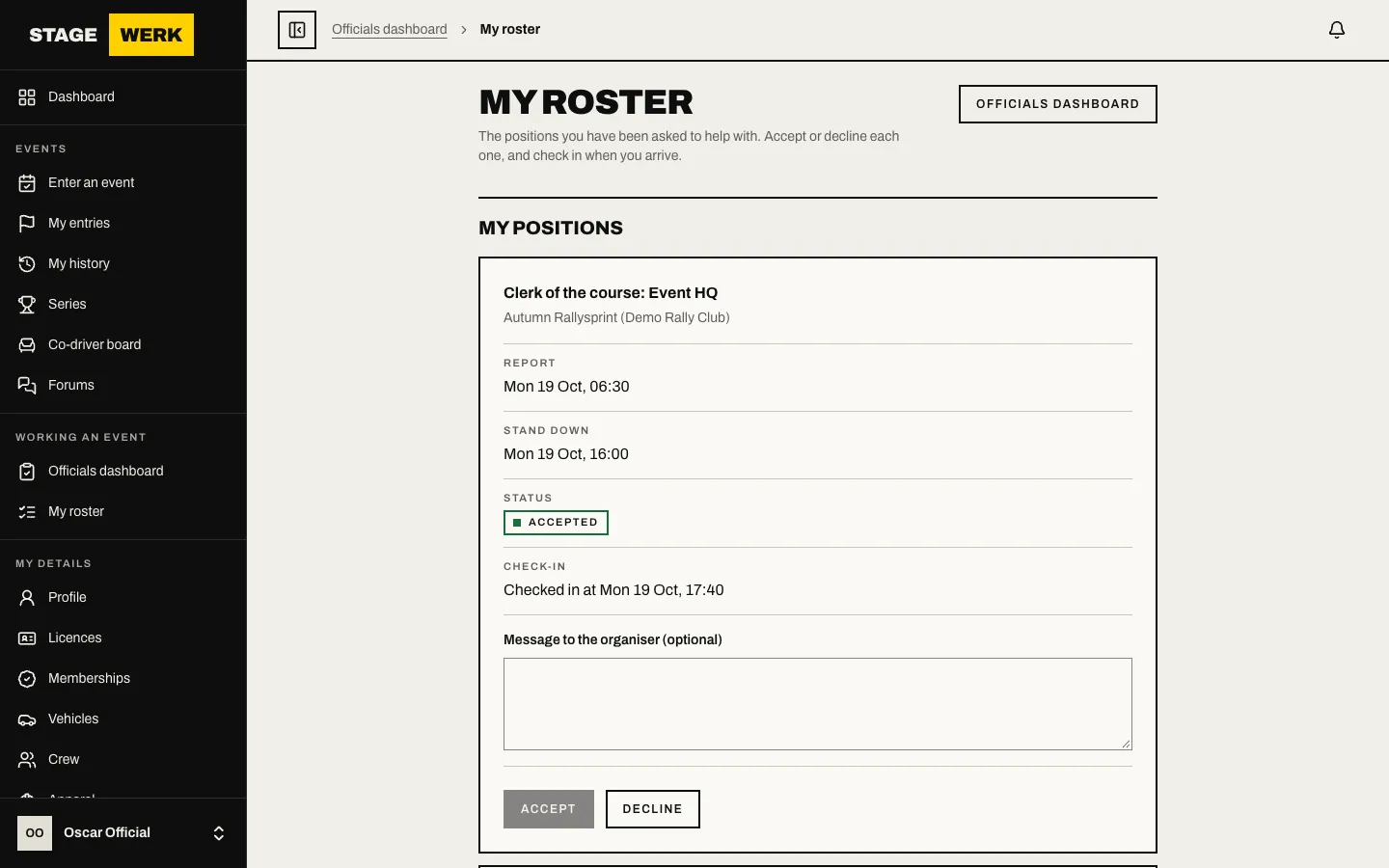
- Read the position: what it is, where, and when you report and stand down. Any notes from the organiser are shown with it.
- Choose "Accept" or "Decline". Use "Message to the organiser (optional)" to explain.
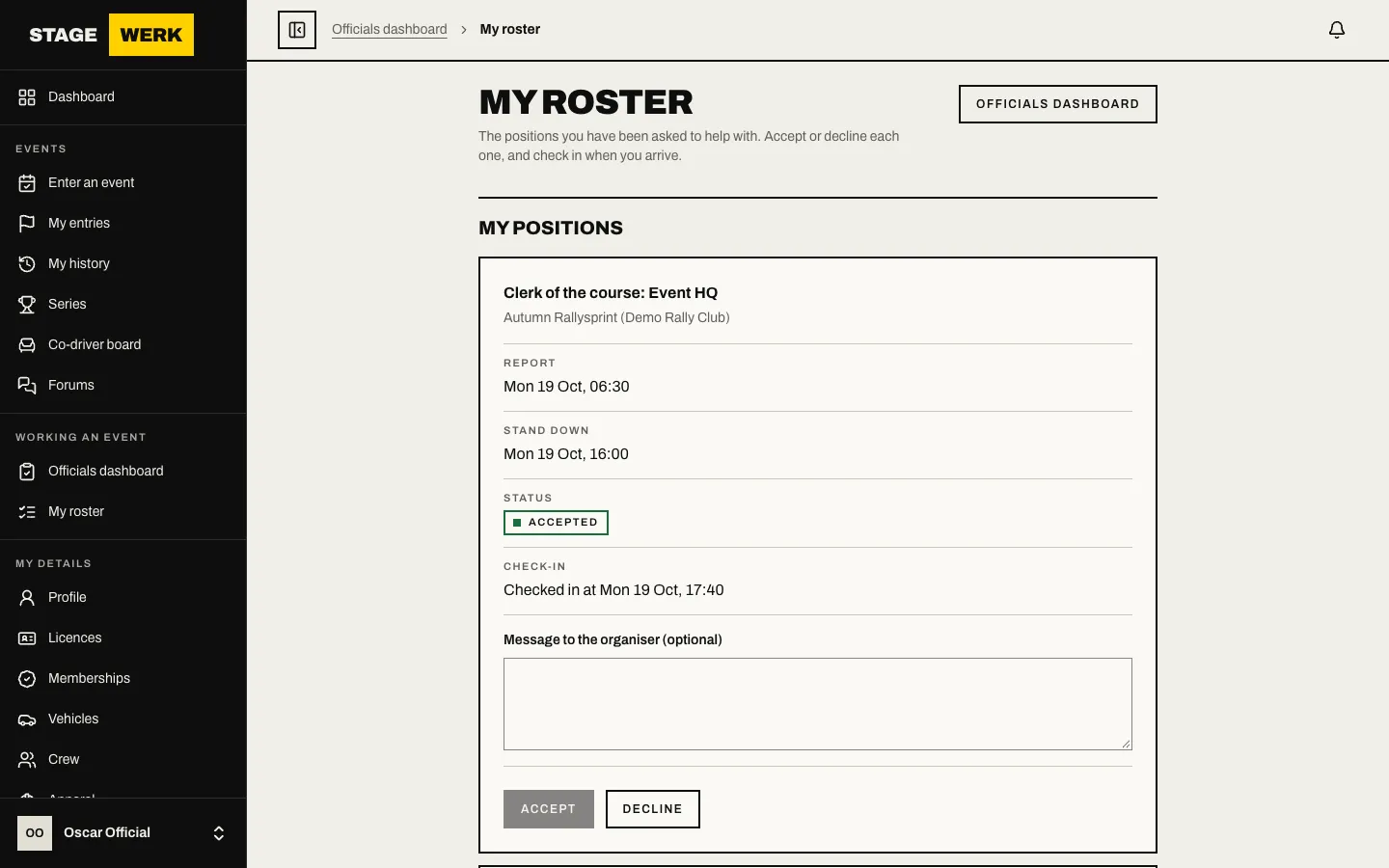
If the organiser changes the position after you replied, the page asks you to check the details and confirm again.
Read the briefing
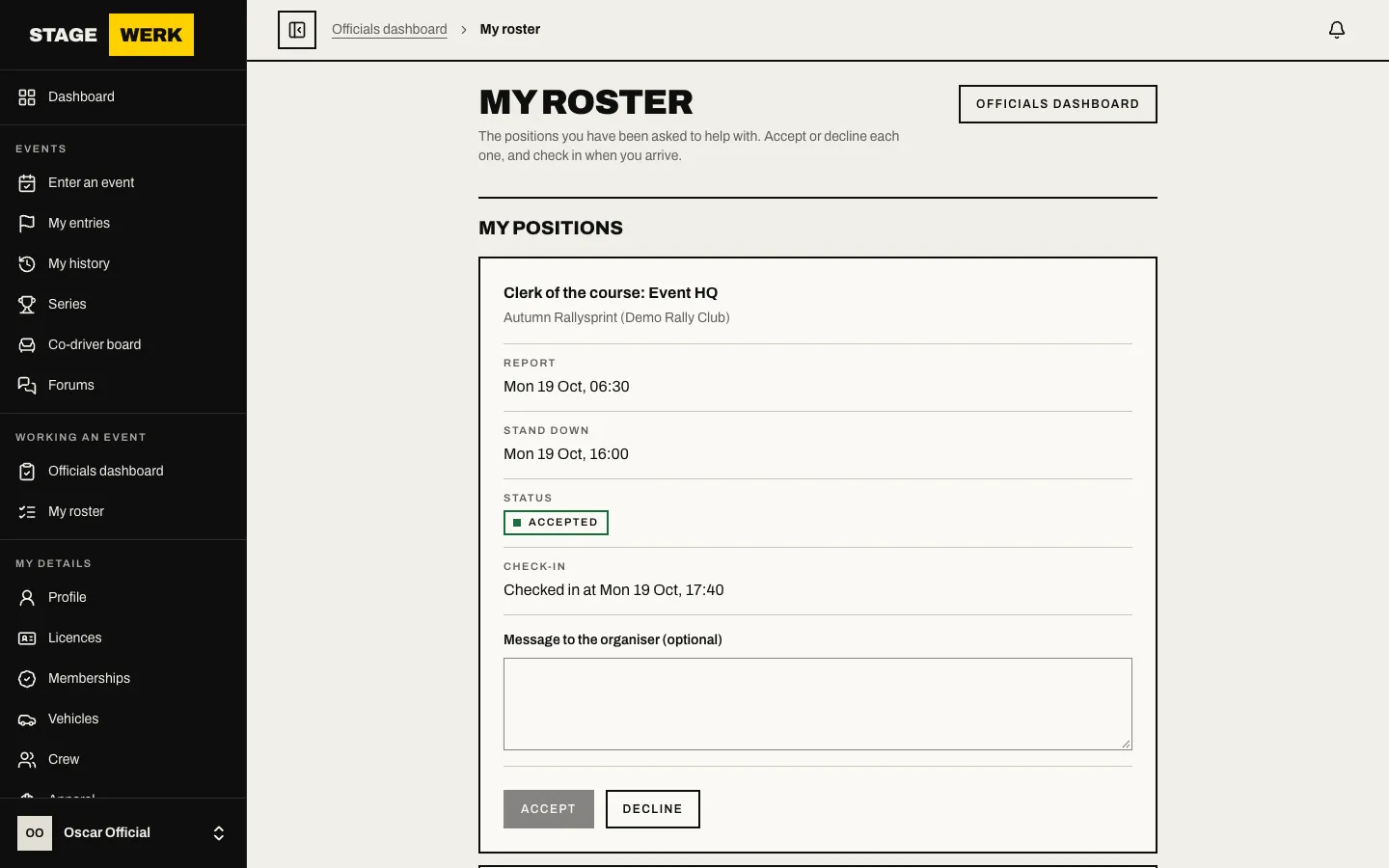
If the organiser sends an officials' briefing, it appears under "Briefings" on "My roster". Read it and choose "I have read and understood the briefing". The organiser can see who has acknowledged each version.
Check in
- On the day, open "My roster" or the link in your email.
- Choose "I'm at my post" on the position.
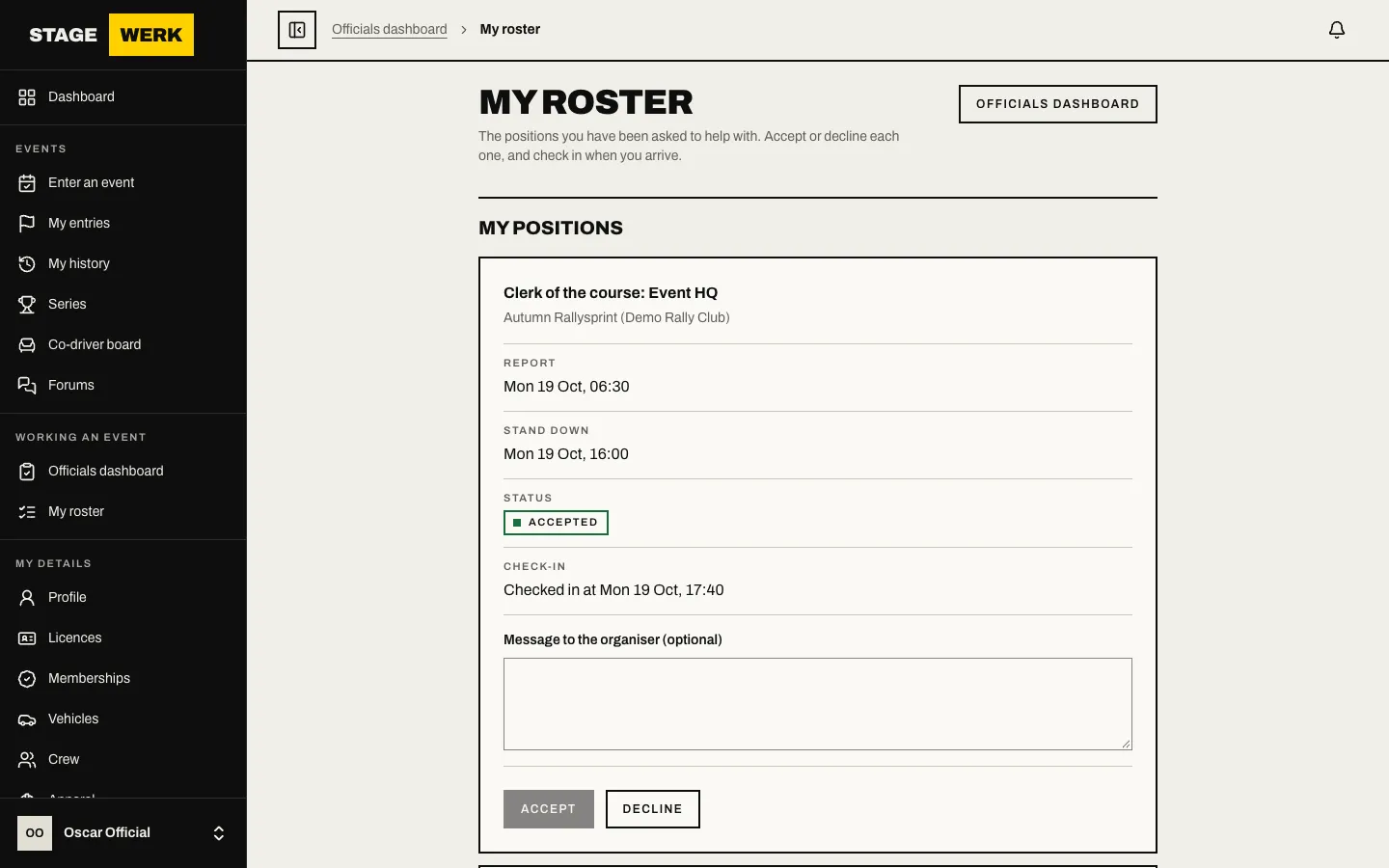
Check-in is only offered on the event's own days, in the event's time zone. The organiser can also check you in, or mark you as not turned up, from their roster.
Stage commanders
If you are a stage commander, "People on my stage" appears on "My roster". For your own stage only, you can see phone numbers, "Check in" a person, "Mark no-show", and undo either with a reason.
If something goes wrong
- You cannot find a position. The organiser has not sent it yet, or the email went to a different address. Ask them to check the address on the roster.
- No check-in button. It is not one of the event's days, or you have declined the position.
- You cannot sign in with the link. The link has expired. Ask the organiser to send it again.
https://stagewerk.com/help