Copy an event or save a template
Copying saves you rebuilding the same classes, fees and documents every round. You need permission to manage events. The "Duplicate" and "Save as template" boxes only show for people who have it.
What gets copied
- Classes, fees and fee windows, the withdrawal policy, required documents, the itinerary and start settings, locations, lead-up sessions, scoring rules and the self-scrutiny checklist choice.
- Documents you marked reusable. Other documents are not copied, and a requirement that pointed at one loses its template file.
- Entry and fee windows keep their time of day and move by the same number of days as the start date.
What is never copied
- Entries, volunteers, the event's status and the permit number.
- Public contacts. They are people's details, so add each one again on purpose.
- Photographs. They show last time's event, so the copy starts with the default image.
Duplicate an event
- Open the event from "Events" and choose "Edit".
- Open "Duplicate".
- Enter a "Name", "Starts on" and "Ends on".
- Choose "Create copy".
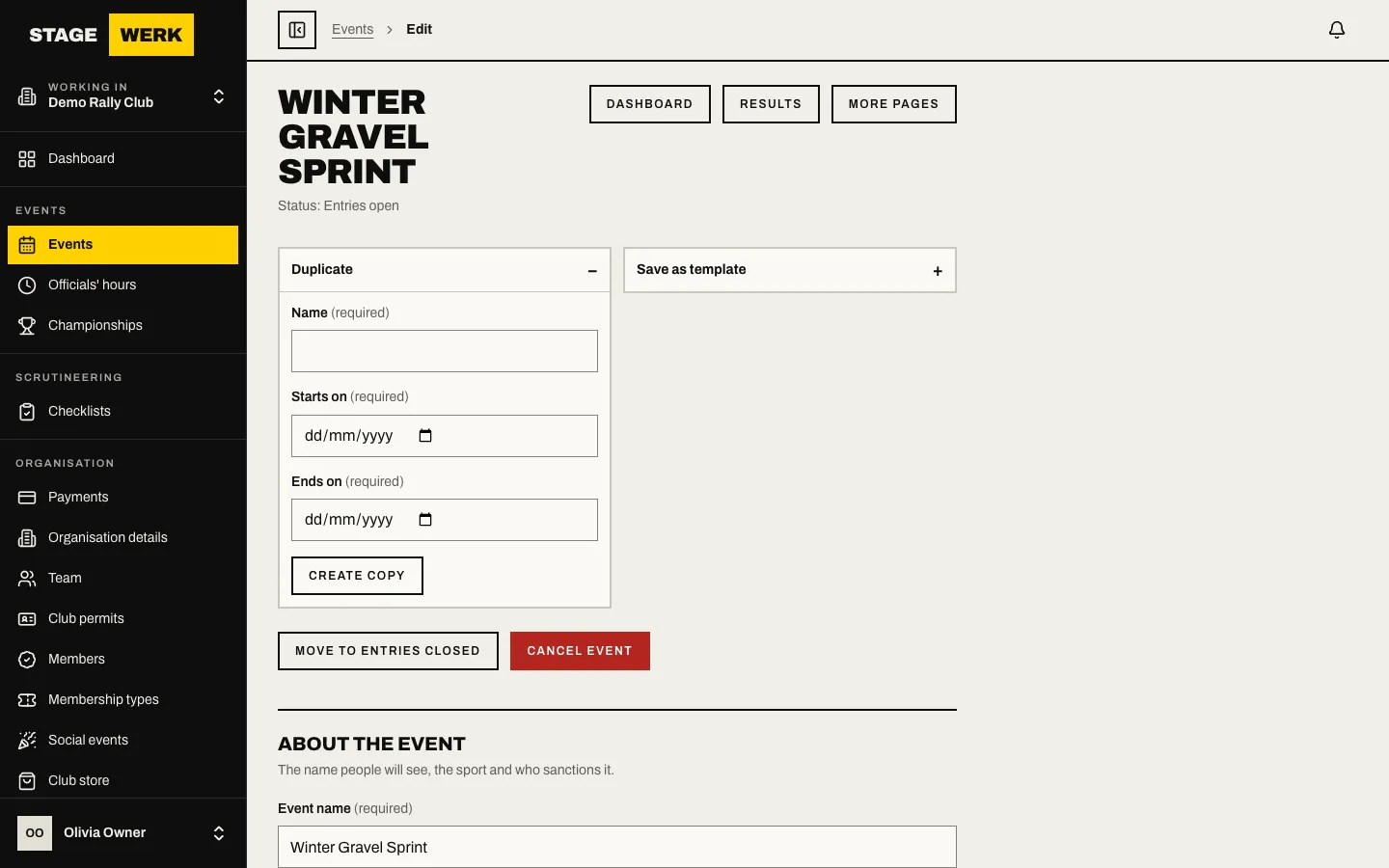
The copy is a new draft and you land on its edit page. If the original belongs to a series season, the copy joins the same season as the next round. Check the dates, then follow Set up an event to finish it.
Save an event as a template
- Open the event and choose "Edit".
- Open "Save as template".
- Enter a "Template name" and choose "Save template".
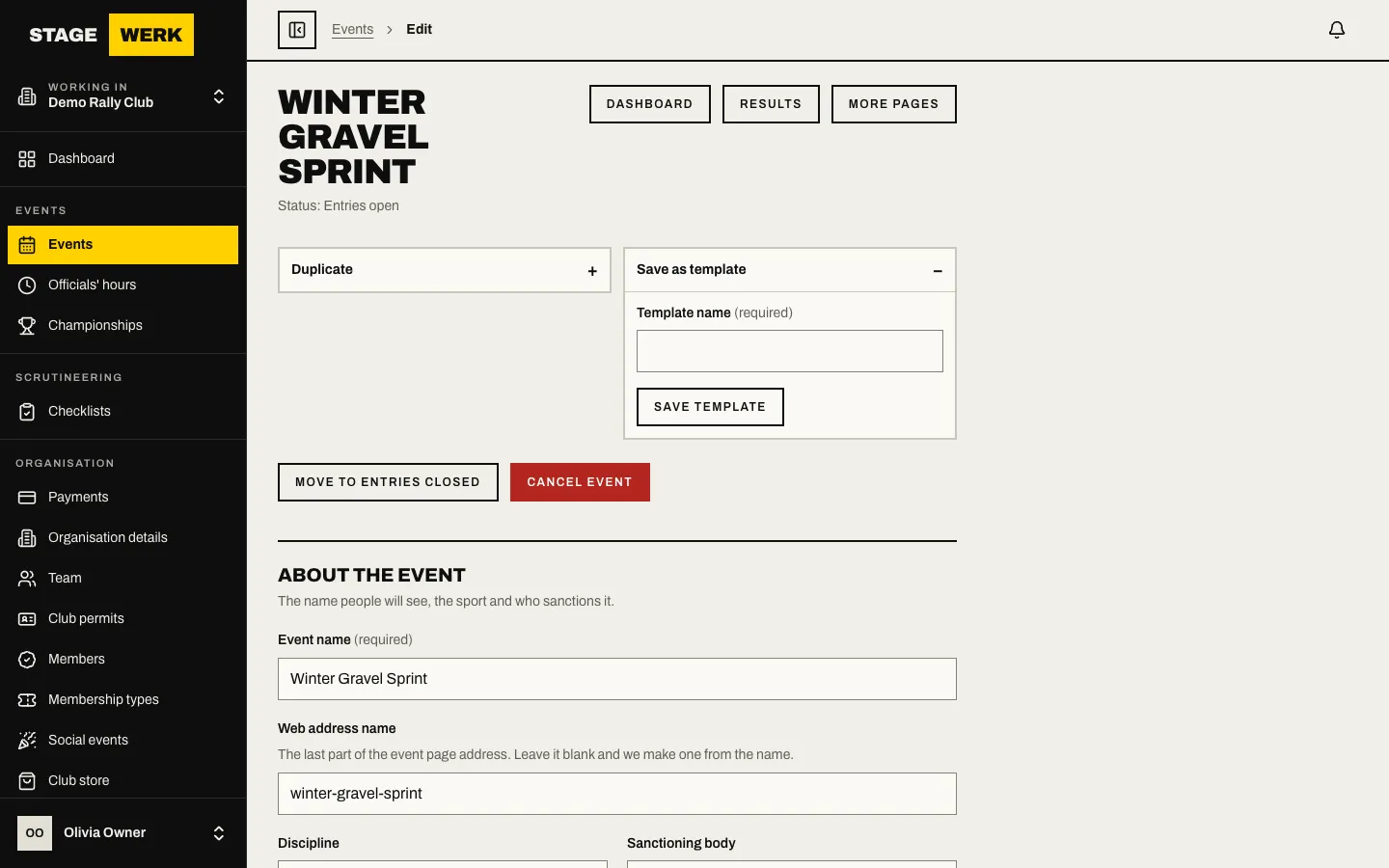
A template keeps the original's dates but is marked "Template: never listed publicly and never opens entries". It never joins a series season.
Start a new event from a template
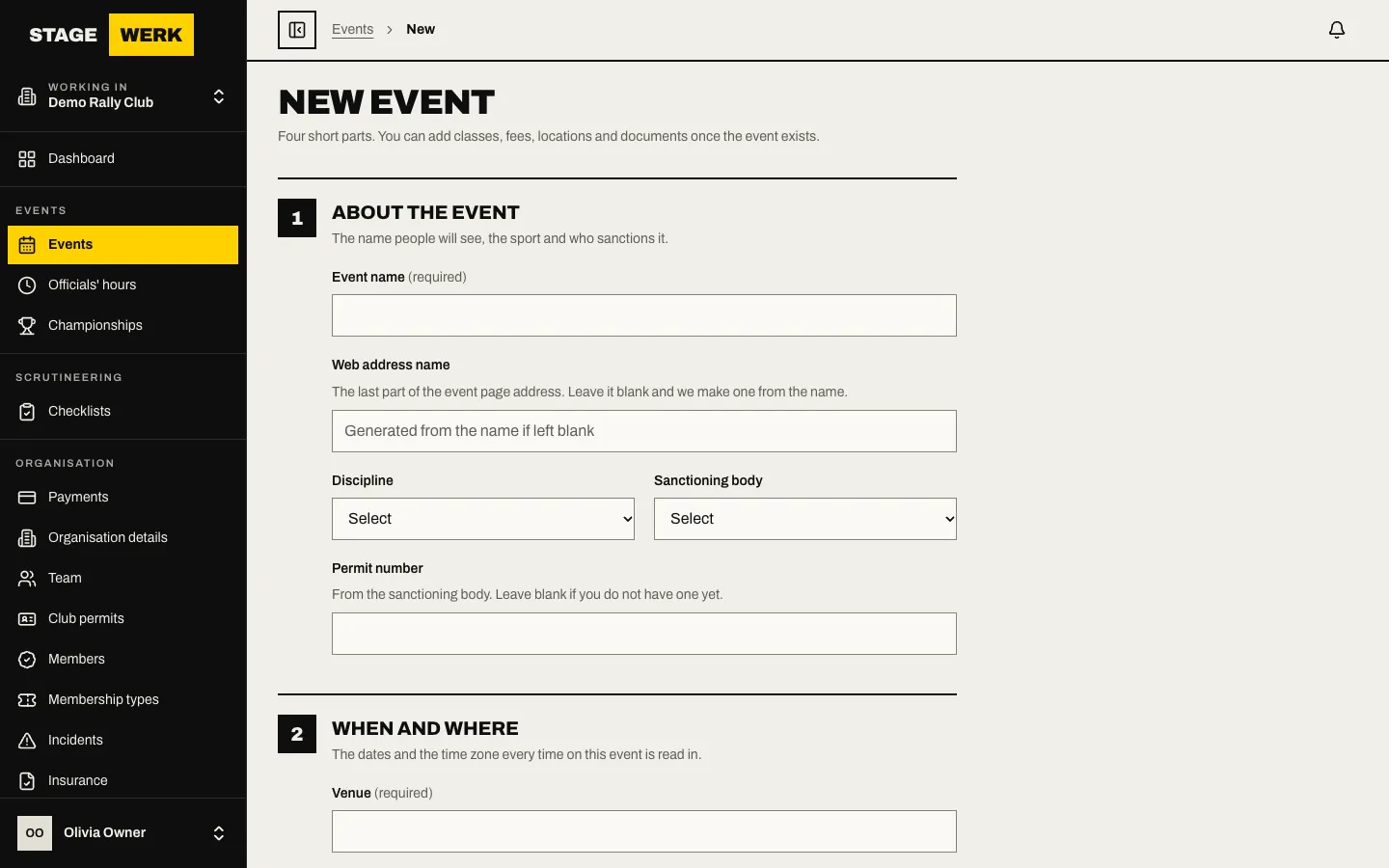
- Choose "Events" and then "New event". If you have templates, the "New from template" box is at the top. (Saved templates are also listed on the "Templates" tab of "Events".)
- Pick the "Template".
- Enter "Name", "Starts on" and "Ends on".
- Choose "Create from template".
Good to know
- Changing a template later does not change events already made from it.
- To remove a template, open it from the "Templates" tab and choose "Delete event" on its edit page.
https://stagewerk.com/help